by Kavio Labs · for WooCommerce 10.1+ on WordPress 6.7+
The department store block theme for WooCommerce: colour-coded departments, a department list beside the hero slider with two side promos, a big search with a department picker, tabbed product grids, a 2 + 1 + 2 offer grid, deals of the day with real countdowns, a department showcase, a promotions band and a three-column product page with a sticky buy box. Four styles (Meridian, Harbor, Citrus, Night) as Site Editor style variations, every colour editable. Cart and Checkout blocks styled, HPOS neutral.
On saleVersion 1.0.0Compatible with WooCommerce 10.1 – 11.2, WordPress 6.7+ No core file edits
Built forWooCommerce
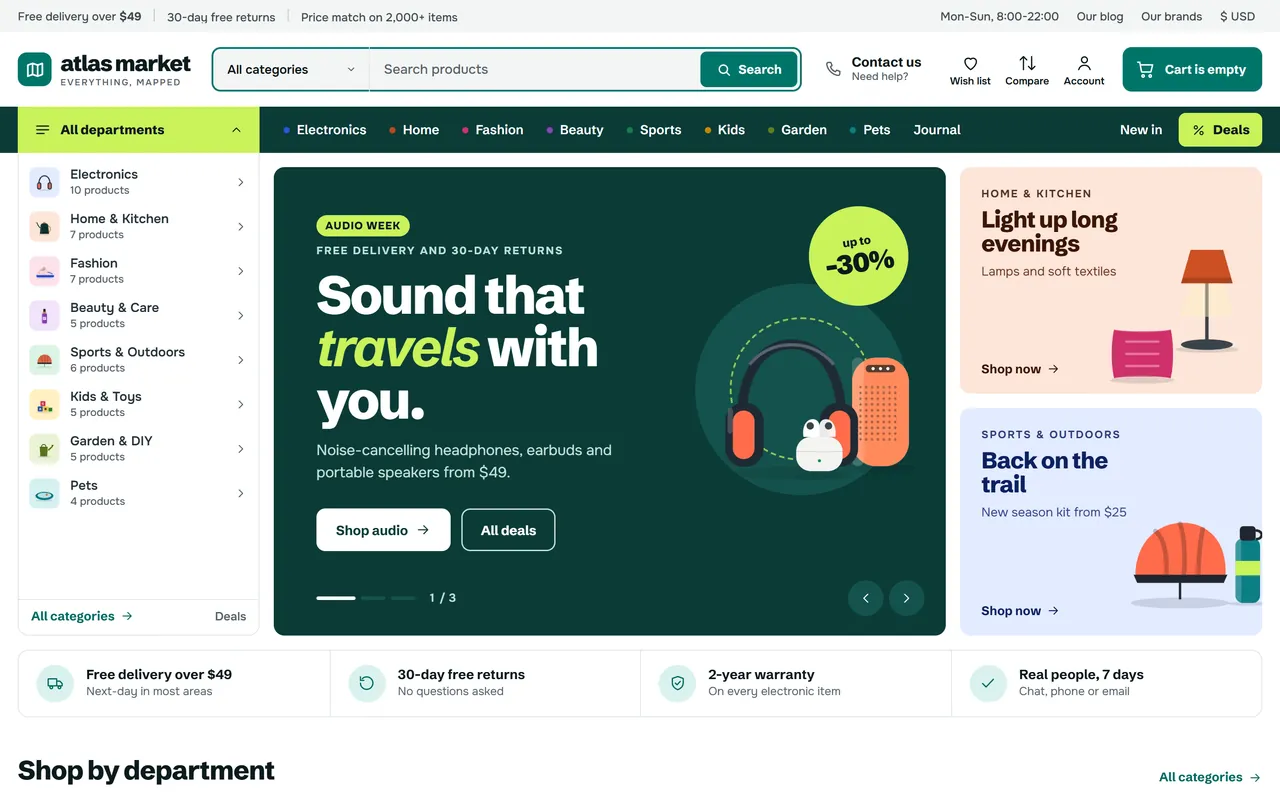
A department list beside the hero slider and a menu bar with a colour dot for every department1 of 15
The department store block theme for WooCommerce: colour-coded departments, a department list beside the hero slider with two side promos, a big search with a department picker, tabbed product grids, a 2 + 1 + 2 offer grid, deals of the day with real countdowns, a department showcase, a promotions band and a three-column product page with a sticky buy box. Four styles (Meridian, Harbor, Citrus, Night) as Site Editor style variations, every colour editable. Cart and Checkout blocks styled, HPOS neutral.
WooCommerce 10.1 - 11.2, WordPress 6.7+
Overview
Atlas is the department-store block theme of Kavio Labs for WooCommerce, the WooCommerce edition of the Atlas theme for CS-Cart and OpenCart: the familiar mega-store layout for general and multi-department stores with large catalogues, with a big search header, an All departments menu, a department list beside the hero slider, tabbed product blocks, offer grids, deals and a three-column product page with a sticky buy box. Every department gets its own colour, so shoppers find their way at a glance.
Atlas home page, Meridian style
What you get
Department colour system. Every top product category gets its own colour by position (eight colours, then they repeat, or the colour you set on the category): the dots in the menu bar, the markers of the department list, the department tiles, the brand and department line on every product card, the category tree and the department showcase. One switch makes every department use the accent colour instead.
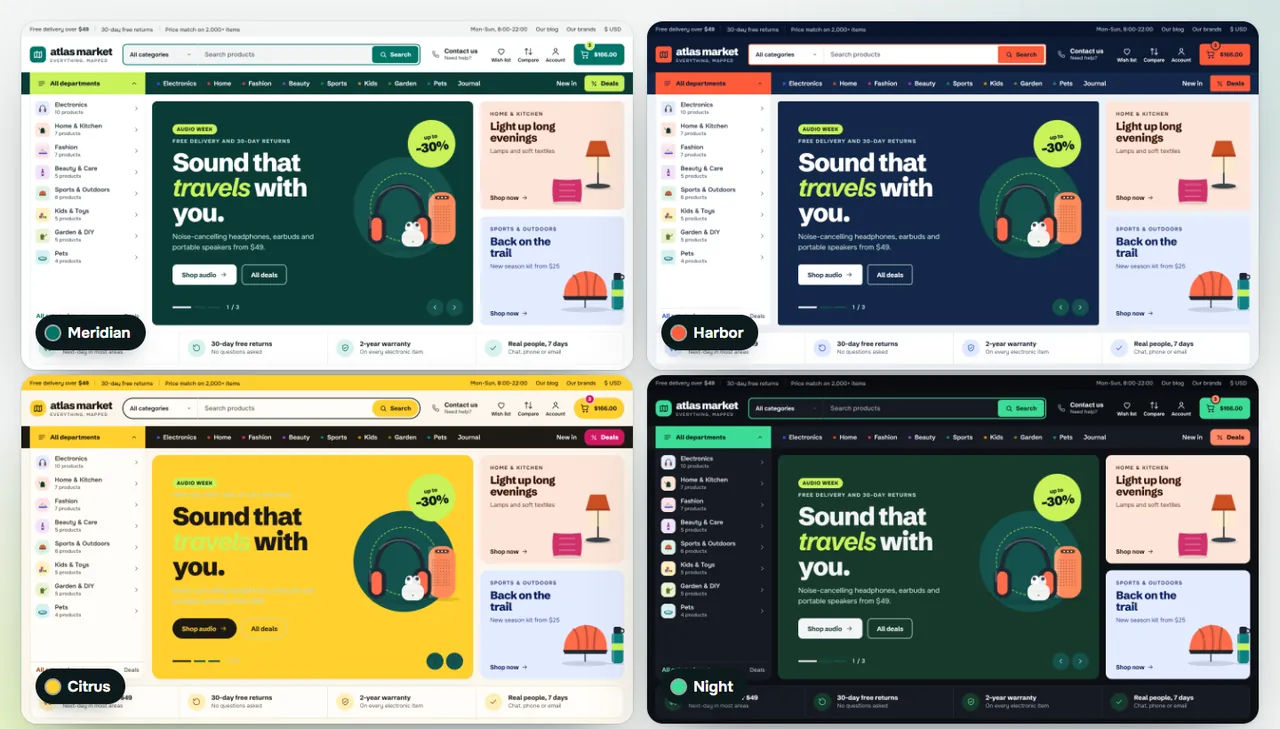
Four styles that change more than the accent.Meridian (white and deep teal, lime deal stickers), Harbor (navy and coral, plate cards on grey), Citrus (cream and sun yellow, pill buttons, magenta stickers) and Night (a dark store with mint buttons). Each style sets the header, menu bar, hero, side promos, promotions band, footer, department colours, corner radius and card look. Styles are Site Editor style variations, so every colour stays editable in Appearance > Editor > Styles > Colors.
Header. Top bar with up to three messages and service links; logo (or a map mark with your store name and a tagline); a search with a department picker and live product and category suggestions; phone number or a "Contact us" link; labelled wish list, compare and account icons with counters; a cart button with the cart total that opens WooCommerce's mini cart drawer.
Menu bar. An All departments button with every department, its image, product count and a flyout with the subcategories; your departments with their colour dots and mega panels (subcategory columns, top brands, popular products, a banner of your own or the top deal); a New in link and a Deals button. Items that do not fit go into a More panel.
Home page, every section for all devices, desktop only or phones only, in any order, and each one also a block pattern for any page:
the department list standing open beside a hero slider (accent word in italics, two buttons, a round sticker, counter and arrows) and two side promos;
a service strip with four promises;
department tiles in the department colours with product counts and subcategories;
Picked for you: up to four tabbed product grids (most popular, bestsellers, on sale, new in);
a 2 + 1 + 2 offer grid with labels, badges and cut-out images;
Deals of the day on a tinted band with countdowns to the real end date of the sale price, and an optional product of the day;
a trending scroller, a department showcase (a panel in the department colour beside four of its products) and a full-width promotions band;
brands as word marks or logos, the journal beside an about text, and a newsletter card on the edge of the footer.
Product cards. Brand and department line with the department colour, a sale ribbon and a new sticker, colour dots that switch the image, rating, a low stock tag, the sale price with the regular price, a stock line, an add button on every card (Store API, no reload; an arrow to the product page when a choice is needed), wish list and compare, a second image on hover and a deal countdown.
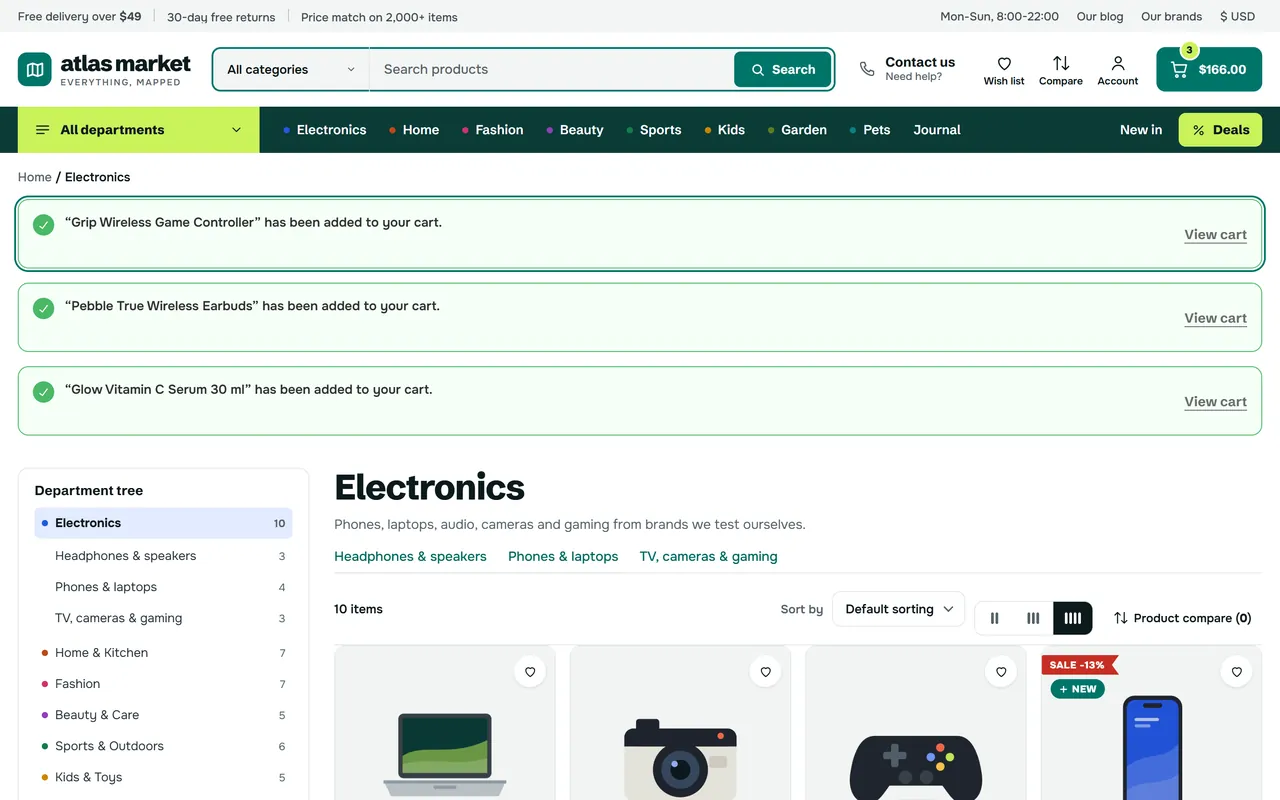
Category pages. A department tree (every department with its count, the current one open with its subcategories) above WooCommerce's AJAX Product filters (your attributes added automatically), subcategory links, a bar with the item count, sorting, density and compare, an offer tile inside the product grid (one or two cells wide, per category; also video and article tiles that open in a dialog), active filter chips, Show more or loading while scrolling, a Deals view and New in this department under the grid. On phones the tree becomes a chips row and the filters open as a sheet from a Filter and Sort bar.
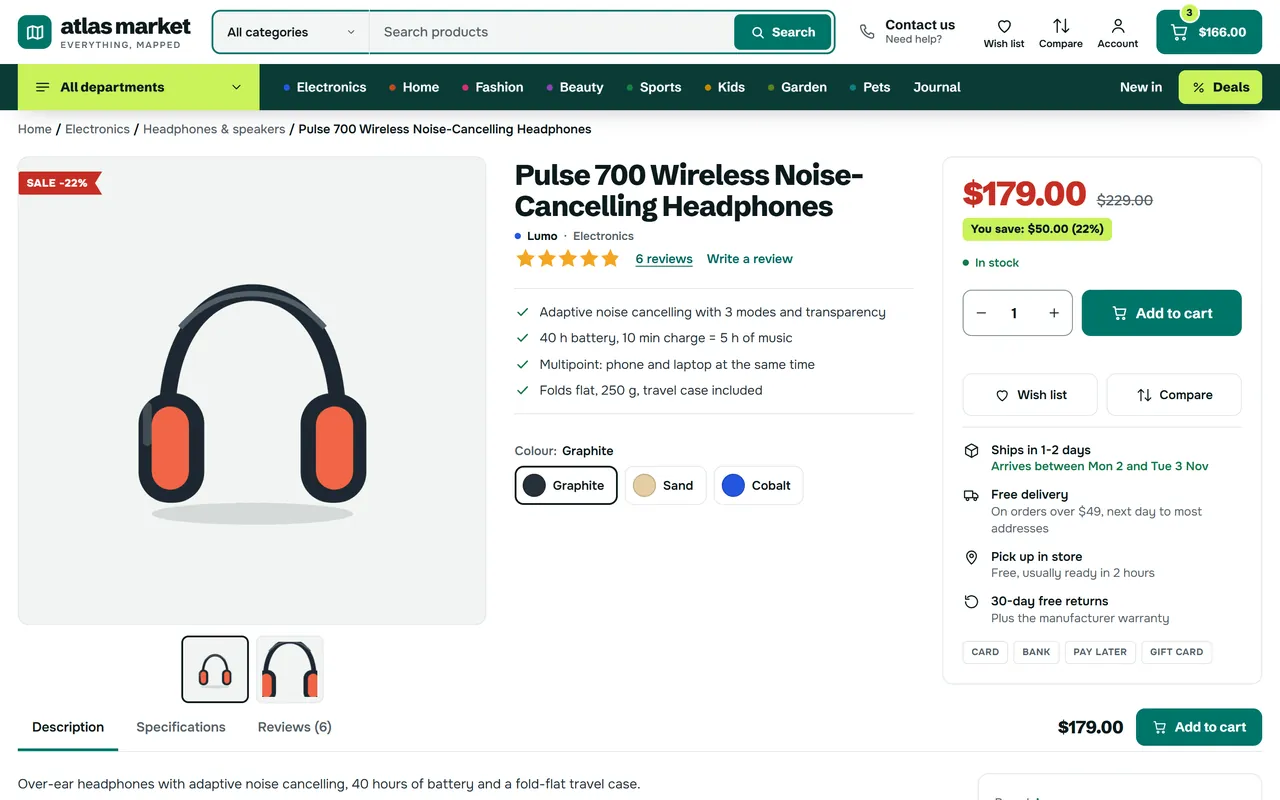
Product page. Three columns: the gallery with thumbnails and hover zoom (and an optional product video), the info column with the highlights (the bullet points of the short description) and colour chips with names that drive the variation form, and a sticky buy box with the price, the saving, the stock line, quantity, Add to cart, wish list, compare, the offer end, delivery facts with dates and payment chips. The tab bar under the product shows the price and an Add to cart button; on phones a sticky buy bar appears.
Block theme done right. WooCommerce's Cart and Checkout blocks, Product Collection, Product Filters and Mini Cart blocks are used and styled; the classic cart, checkout and account pages are styled too. Atlas never reads or writes orders, so it is neutral to High-Performance Order Storage (HPOS).
Safe and fast. Two self-hosted fonts (Schibsted Grotesk and Onest, SIL Open Font License 1.1), one stylesheet and one deferred script, no font or icon CDNs.
The four styles: Meridian, Harbor, Citrus and NightCategory page with the department tree and an offer tileThree-column product page with the buy box
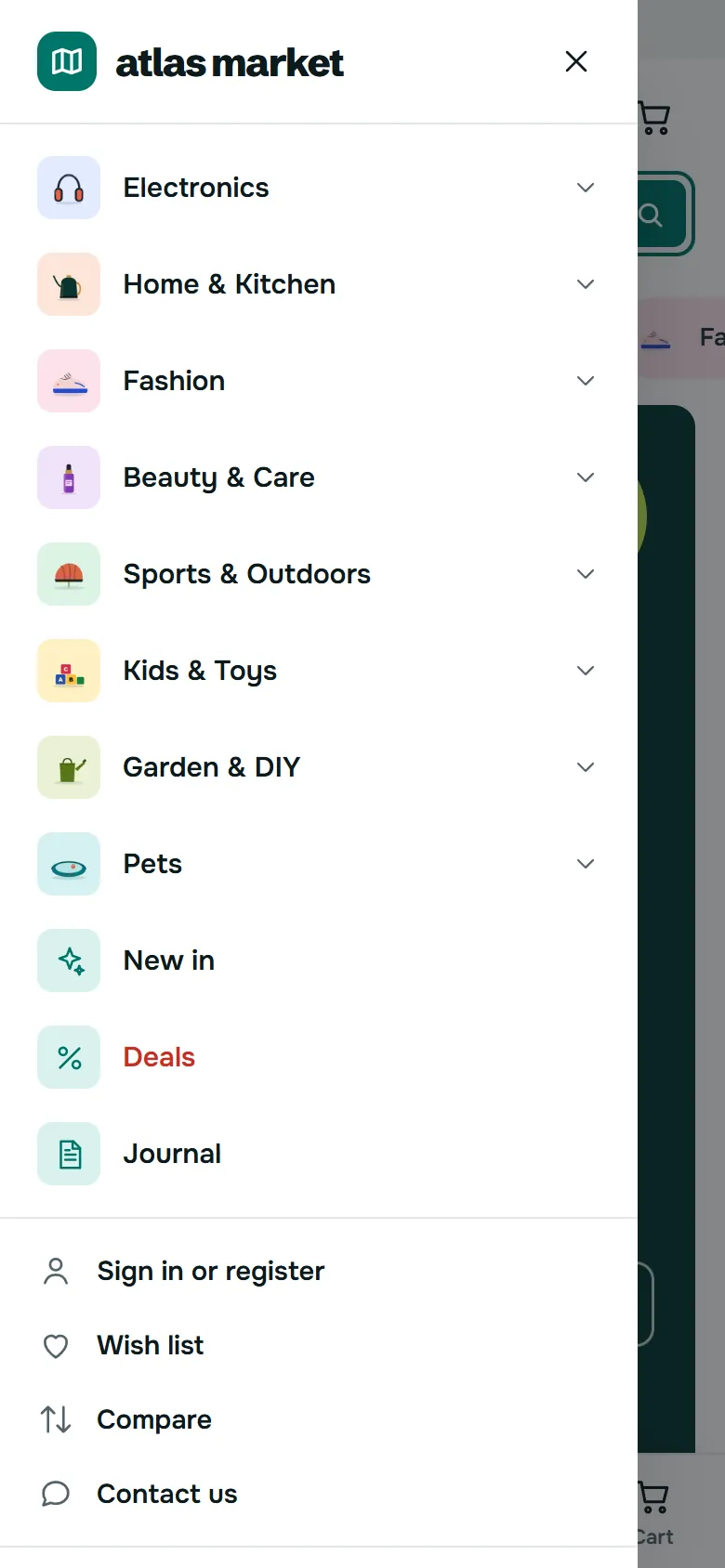
On a phone the departments become a chips row, the menu a drawer with department images, a bottom bar gives Home, Catalog, Search, Saved and Cart, category pages get a Filter and Sort bar and product pages a sticky buy bar.
Atlas on a phone
Pages of this documentation
Installation
Requirements
WordPress 6.7 or newer (tested with 7.1), PHP 7.4 or newer (tested with 8.3).
WooCommerce 10.1 or newer (tested with 11.2). The Cart and Checkout blocks and the classic cart and checkout pages are both styled. Atlas never reads or writes orders, so High-Performance Order Storage (HPOS) needs nothing extra.
Install
Appearance > Themes > Add New Theme > Upload Theme: choose kv-atlas-kv.zip (or the zip of your marketplace) and install it.
Activate Atlas.
Open Appearance > Atlas. On the own-site build, enter the licence key from your Kavio Labs account on the Licence tab: it switches on the theme extras (quick view, wish list, compare, live search, promo tiles, Show more, the sticky bars) and the demo importer. Templates, styles and home sections work without a key.
Order your top product categories (Products > Categories, drag and drop): they are your departments, and their order gives the department colours. Optionally set a shorter menu-bar name, a colour, an icon and a mega panel banner on each.
Demo store (optional)
Appearance > Atlas > Demo store > Import the demo store adds the atlas market store: eight departments with 22 subcategories and images, 49 illustrated products (14 with colour variations), 12 brands, 163 reviews, three journal posts, four pages (About us, Delivery and payment, Returns, Contact us) and all the home and catalog settings. Your own products, pages and orders are never touched. Remove the demo store deletes exactly the demo items again and restores the settings you had before.
Upload the new zip (Upload Theme > Replace current with uploaded). Settings, styles and your Site Editor changes stay.
Configuration
Open Appearance > Atlas. Every storefront text you can change is on one of these tabs. A section that is switched off or has no content is not shown. Colours are edited in the Site Editor (Appearance > Editor > Styles > Colors).
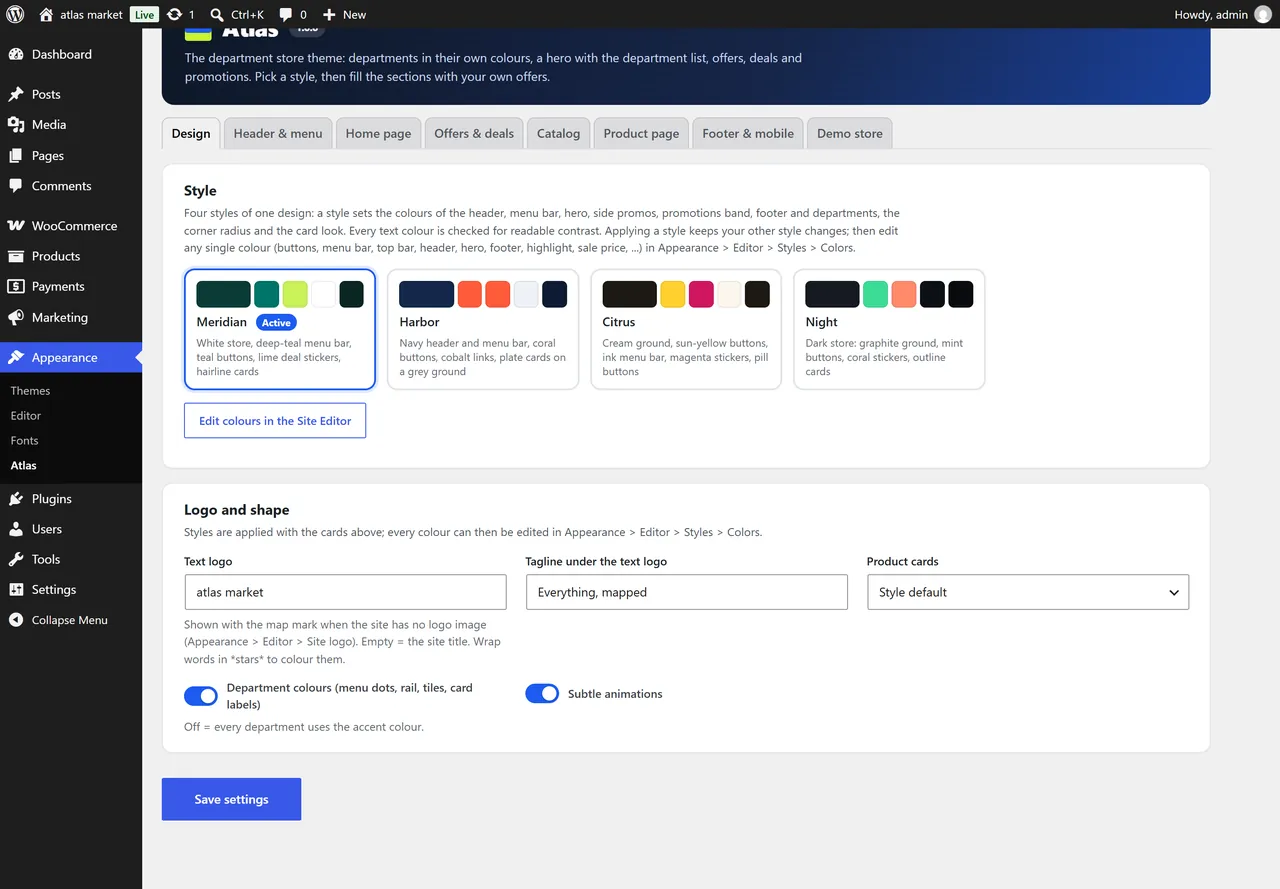
Atlas settings: the four styles
Design
Style: Meridian (default), Harbor, Citrus or Night (dark). A style sets the colours of the header, menu bar, hero, side promos, promotions band, footer and departments, the corner radius and the card look. Applying a style keeps your other Site Editor changes. Then edit any single colour (accent, links, header, menu bar, top bar, hero, footer, highlight, sale price, ...) in the Site Editor; text colours are checked for contrast in every style.
Text logo and the tagline under it (shown with the map mark when the site has no logo image; *stars* colour a part of the name).
Product cards: style default, hairline, plate, minimal or outlined.
Department colours: every top category gets its own colour by position (eight colours, then they repeat). Off = every department uses the accent colour.
Subtle animations (visitors who prefer reduced motion never see them).
Header & menu
Top bar with three messages (*stars* make a part bold; the messages rotate on phones) and links (journal, brands, help page); Opening hours, Phone number and its label (empty = a "Contact us" link), Address (footer).
Sticky header, Department picker in the search, Live search suggestions, Search placeholder.
Menu bar: number of departments (the rest goes into More), All departments button, Department list beside the hero (off = full-width hero), list label and number, a Brands item (a brands panel), New in, Deals and an extra link (for example the journal; empty link = the posts page).
Category fields (Products > Categories > Edit)
Menu bar name: a shorter name for a department, for example "Home" for "Home & Kitchen".
Department colour: one of the eight colours (top categories; empty = by position).
Menu icon for departments without an image, a label (New, Hot, -30%) and its colour.
Mega menu banner: image, title, text and link. Without a banner the panel shows the top deal of the department.
Home page
Section order (hero, usp, cats, tabs, mosaic, deal, trend, showcase, promos, banners, brands, blog, reviews). Every section has Show and Show on (all devices, desktop and tablet only, phones only).
Hero slider and side promos: seconds per slide (autoplay pauses on hover, on focus and for visitors who prefer reduced motion), up to five slides (label, line next to it, title, text, image, two buttons with links, a round sticker small|big) and two side promos (label, title, text, image, link).
Service strip: up to four promises with an icon, a bold part and a small part.
Department tiles: title, category ids or slugs (empty = your departments), number.
Product tabs: a title and up to four tabs, each with a source (most popular, best sellers, newest, on sale, featured, top rated or your own product ids / a category slug) and the number of products.
Offers & deals
Offer grid: title, note, link; up to five tiles with a label, title, text, badge, link text, image, link, size (normal or large: give the second tile the large size) and colour (a department colour or the accent). Empty = your departments with their images.
Deals of the day: line above the title, title, product ids or SKUs (empty = products on sale, ending soonest first), number; an optional product of the day with a countdown and the stock sold.
Trending scroller: title, product ids or SKUs (empty = most popular), number.
Department showcase: the department (empty = your first), label, links (Name|link or Name|search words, one per line; empty = its subcategories), button, image and product ids (empty = popular in the department).
Promotions band: title, note, link; cards with a label, title, note, badge, image, link and end date (YYYY-MM-DD): "N days left" is shown and the card hides itself after the date.
Banners (up to three image banners), Brands (title, number: your brands as word marks or their logos), Journal and about (the latest posts and an about text: paragraphs separated by an empty line, # starts a sub heading), Customer reviews (an average card and up to three quotes, or your latest 5-star reviews; write only real figures and quotes).
Catalog
Department tree, Subcategories (links, chips, image tiles, hidden), Pagination (Show more button, load more while scrolling, page numbers), Products per row (3, 4 or 5 on wide screens), Filter and Sort bar on phones, New in this department and its title.
Promo tiles: category slugs (empty = every category page and the shop; a category also covers its subcategories), place in the grid, size (1 or 2 cells), type (banner, countdown promo, video, article), label, title, text, image, button, link, end date, video URL (media library file, YouTube or Vimeo), article id (page or post), colour (hero colour, accent, dark, light, highlight). Tiles show on the first page of a category.
Product cards: brand and department line, second image on hover, colour dots and sizes, quick view, wish list, compare, quantity stepper, deal countdowns.
Stickers: sale ribbon, new (days after publishing), best seller (top N most sold), low stock quantity.
Product page
Highlights list, Hover zoom, Sticky tab bar with Add to cart and phone Buy bar, In-stock line, the attribute with the dispatch time (for example "Ships in" = 1-2 days: the buy box shows the arrival dates), Delivery facts (up to four lines with an icon, title and text), Payment chips in the buy box, Related products title. A product video is set per product (Product data > General > Product video).
Footer & mobile
Newsletter card (title, text, button and link; empty link = My account), footer about text, social links (Name|URL per line, shown as round buttons), payment chips (plain text, no logos), bottom bar on phones, Back to top button and the free-shipping amount of the cart progress bar (empty = your Free shipping method).
Demo store and licence
The Demo store tab imports and removes the atlas market demo store and resets the settings. On the own-site build, the Licence tab takes the key from your Kavio Labs account and shows the licence status.
Using Atlas
Styles and colours in the Site Editor
The four styles (Meridian, Harbor, Citrus, Night) are Site Editor style variations. Pick one on Appearance > Atlas (or in Appearance > Editor > Styles), then open Styles > Colors > Palette and change any colour: accent, links, header, menu bar, top bar, hero, footer, highlight or sale price. Card look, radii and the department colours come with the style.
The four styles
Departments
Your top product categories are the departments, in their order (Products > Categories). Each gets one of eight colours by position, or the colour you set on its edit screen. The colour shows in the menu bar dots, the department list, the tiles, the card lines, the category tree and the showcase. Switch Department colours off on the Design tab to use the accent everywhere.
Sections anywhere
Every home section is also a block pattern in the inserter (category Atlas sections): Hero with departments, Service strip, Department tiles, Product tabs, Offer grid, Deals of the day, Trending scroller, Department showcase, Promotions band, Banners, Brands, Journal and about, Customer reviews. Place them on any page; they show the content of the theme settings. The front page template holds the whole home page in your section order; add any other block before or after it in the Site Editor.
Visibility switches
Select any block in the editor and open Atlas visibility in the sidebar: Hide on desktop (1024 px and wider), Hide on tablet (768 to 1023 px), Hide on phone (below 768 px). Hidden blocks are shown faded in the editor.
Promo tiles, videos and articles
Add a tile on Appearance > Atlas > Catalog: choose the categories, the place in the grid and the size. A countdown tile counts down to its end date and hides itself afterwards. A video tile opens the video in a dialog (YouTube and Vimeo use their privacy-friendly players and load only when the shopper presses play). An article tile opens a page or post in a dialog with a link to the full page.
Category page with the department tree and an offer tile
Product page
The highlights are the list items of the short description. Colour chips appear for an attribute called Colour, Color, Shade or Finish (the chip colour comes from the term colour or the colour name); other variation attributes become chips. A "Ships in" attribute (for example "1-2 days") makes the buy box show the arrival dates.
Three-column product page
Phones
Phones get a bottom tab bar (Home, Catalog, Search, Saved, Cart), department chips above the hero, a drawer menu with department images, a Filter and Sort bar on category pages and a sticky Buy bar on product pages.
Phone view
Developer notes
Block theme, text domain kv-atlas, PHP namespace KavioLabs\Atlas, option kv_atlas_settings (one autoloaded array; the schema in inc/Settings.php drives defaults, sanitising and the settings page).
Storefront parts are marker groups in templates, parts and patterns (class at-dyn-*, for example at-dyn-header, at-dyn-home, at-dyn-home-deal, at-dyn-card, at-dyn-pinfo, at-dyn-pbuytop, at-dyn-ptabs); inc/Blocks.php fills them on render_block. Groups with the class at-pp (product page) and at-catl (category layout) get the department colour class at-d1 ... at-d8.
The product grid is WooCommerce's Product Collection; each item renders the Atlas card (inc/Cards.php). Promo tiles are inserted into the product template output (inc/Catalog.php, filter render_block_woocommerce/product-template).
The product page keeps WooCommerce's Add to cart form block (classic form) in the buy box; the colour and option chips of the info column ([data-at-proxy]) set its selects. Product tabs are WooCommerce's tabs (woocommerce_product_tabs) in the Atlas markup, so tabs added by other extensions stay.
Colour tokens: --at-* CSS variables read the theme.json palette (--wp--preset--color--*) and settings.custom.at of the active style (--wp--custom--at--*). The styles are theme.json (Meridian) and styles/*.json; css/00-map.css, inc/schemes.php and the variations are generated by tests/gen-theme-json.js with a contrast gate.
Departments: the top product categories in their order (Data::depts()); term meta kv_atlas_short, kv_atlas_slot, kv_atlas_icon, kv_atlas_label, kv_atlas_tone, kv_atlas_banner_*. Product video: product meta _kv_atlas_video. Post products: post meta _kv_atlas_products.
Caches: transients kv_atlas_menu, kv_atlas_depts, kv_atlas_deals, kv_atlas_hits, kv_atlas_brands (cleared when products, categories, brands or settings change).
Script: assets/js/theme.js (no jQuery except the variation form events on product pages), settings in window.atCfg; add to cart, quick view and lists use the Store API. Editor: assets/js/editor.js.
Visibility classes: at-hide-d, at-hide-t, at-hide-m (usable in any block's Additional CSS classes).
Is Atlas the same theme as Atlas for CS-Cart and OpenCart?
Yes: the same design, styles and demo store, built as a WordPress block theme for WooCommerce.
Does Atlas work with the Cart and Checkout blocks?
Yes, and with the classic cart and checkout pages too. The theme only styles them; payment and shipping plugins keep working.
Is it compatible with HPOS?
Yes. The theme never reads or writes orders.
How do the department colours work?
Your top product categories are the departments; each gets one of eight colours by its position, or the colour you choose on the category. Products take the colour of their first department.
Where are the wish list and compare lists saved?
In the shopper's browser (localStorage). No account, no cookie, nothing sent to the server.
Do the filters reload the page?
No. Atlas uses WooCommerce's own Product Filters block (AJAX through WooCommerce's Interactivity router) and adds your global attributes (colour first, then size) automatically.
Can I use my own colours?
Yes: pick the closest style, then edit any colour in Appearance > Editor > Styles > Colors.
What happens without a licence key?
Basic mode: templates, styles and home sections keep working; quick view, wish list, compare, live search, promo tiles, Show more and the sticky bars are switched off. The admin is never blocked.
Does the theme load anything from other servers?
No. The fonts are self-hosted; YouTube or Vimeo players load only when a shopper presses play on a video you added.
Is Atlas translation ready?
Yes, with languages/kv-atlas.pot. The theme ships in English.
Flagship multipurpose block theme: five ready-made stores (Fashion, Electronics, Home, Beauty, Grocery) imported with one click, each switching colours, fonts, header, footer and home page. Three headers, two footers, mega menu, quick view, wishlist and compare, live search, AJAX filters, colour and size swatches, deal countdowns, a sticky add-to-cart bar and a free-shipping bar.
Year/make/model parts search for WooCommerce: fitment table per product, CSV import, My Garage, fits / does not fit badge and vehicle-filtered shop and search pages.