by Kavio Labs · for WooCommerce 10.1+ on WordPress 6.7+
Let approved business customers pay on invoice in WooCommerce: Net 15/30/60 or end-of-month terms and a credit limit per customer or role, PO numbers, a credit check at checkout (block and classic) that hides the method or holds the order for review, due dates, reminder e-mails, automatic account hold, online payment of open invoices, recorded part payments, My Account statements, credit applications, a receivables overview and an aging report with CSV. HPOS and blocks compatible.
Tested on WooCommerce 11.2.1 & WordPress 7.1.3Updated Nov 2, 2026Version 1.0.0Compatible with WooCommerce 10.1 – 11.2, WordPress 6.7+ No core file edits
Built forWooCommerce
Pay on invoice, within the credit you give1 of 9
What it does
Let approved business customers pay on invoice in WooCommerce: Net 15/30/60 or end-of-month terms and a credit limit per customer or role, PO numbers, a credit check at checkout (block and classic) that hides the method or holds the order for review, due dates, reminder e-mails, automatic account hold, online payment of open invoices, recorded part payments, My Account statements, credit applications, a receivables overview and an aging report with CSV. HPOS and blocks compatible.
Sell on credit without losing track. Business customers expect to order now and pay in 30 days. Net Terms & Credit Limits gives each approved customer payment terms and a credit limit, checks every order against the available credit, and then follows the invoice until it is paid.
Features
At checkout
"Pay on invoice" in the block checkout and the classic checkout
Payment terms, due date and available credit shown before ordering
PO number field: off, optional or required
Above the available credit: hidden, or accepted and held for credit review
Paused while an invoice is overdue, refused for accounts on hold, checked again on the server
For your customers
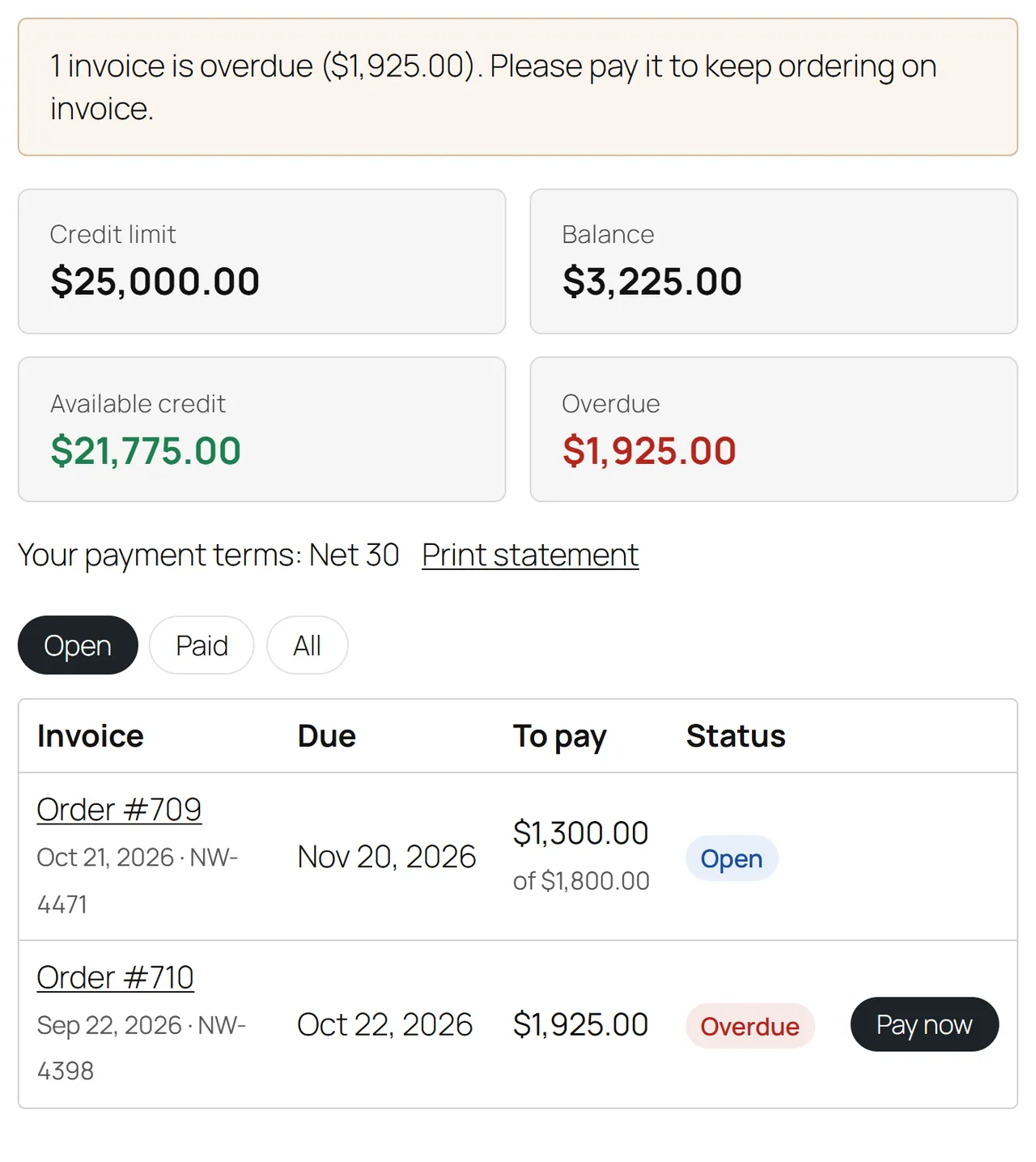
My Account > Credit account: limit, balance, available credit, overdue amount and every invoice
Pay open invoices online with your other payment methods
Printable account statement
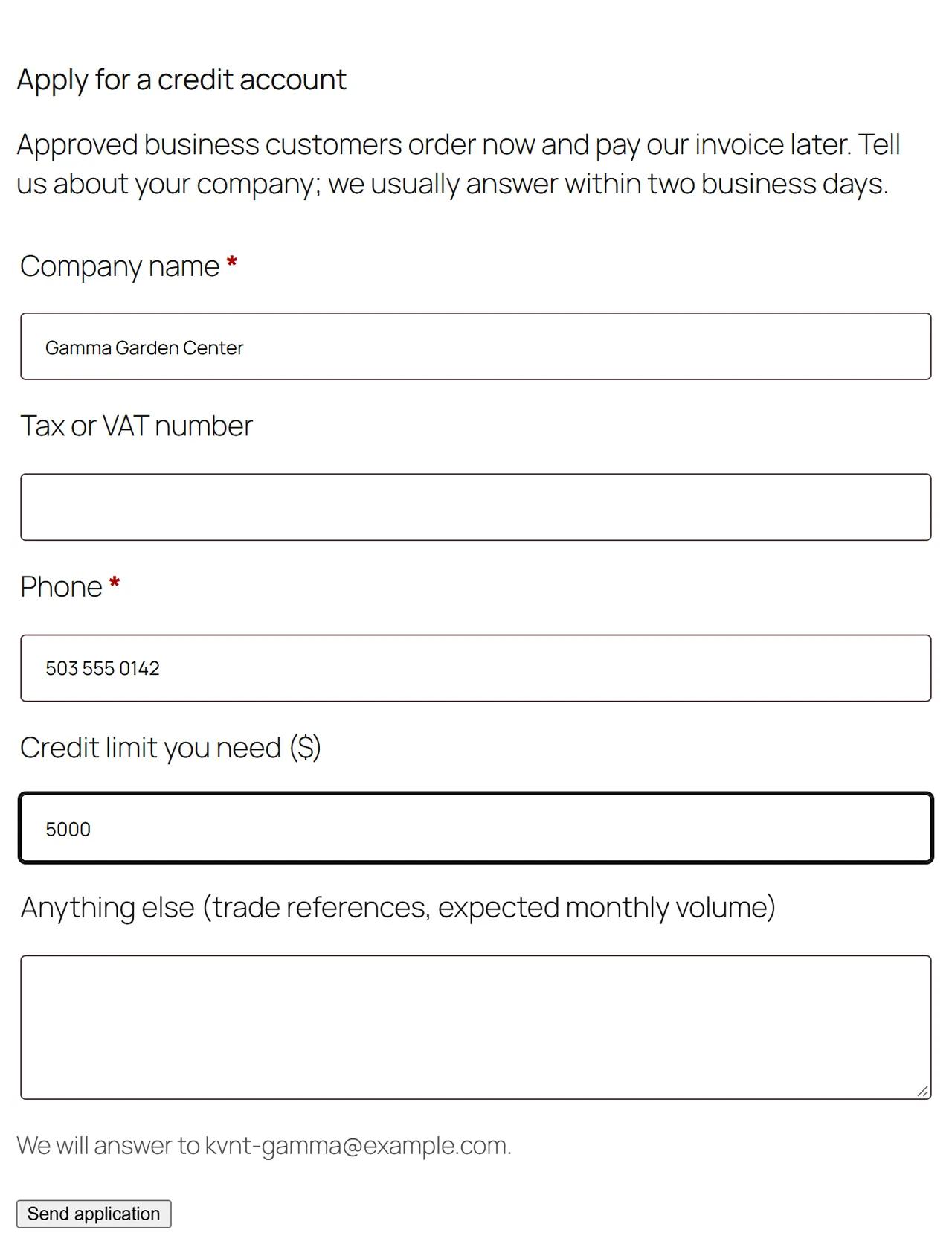
Apply for a credit account
For you
Credit limit and terms (Net 15, 30, 60, EOM) per customer or per user role
Record full and part payments with date, method and reference on the order
Reminder e-mails before, on and after the due date
Accounts put on hold automatically after N days overdue, released once paid
Receivables overview, invoice list with search, accounts, applications, aging report, CSV export
What you get
Download & installThe plugin .zip, installed in Plugins > Add New Plugin > Upload Plugin. Download it from My licenses right after payment.
12 months of updates & supportNew versions and help for 12 months (24 or 36 months at checkout). After that the plugin keeps working; renew anytime at 50%.
License for your storeOne production domain with all its subdomains; staging and local development hosts are free. How licensing works
30-day refundFull refund within 30 days of your first purchase, no reason needed. Refund policy
Tested buildsWooCommerce 10.1 – 11.2, WordPress 6.7+. Tested on WooCommerce 11.2.1 and WordPress 7.1.3.
Documentation & supportFull guide (Installation, Configuration, Usage, FAQ) on this page. Tickets from your account, first reply within 1 business day.
Compatibility
Net Terms & Credit Limits works with WooCommerce 10.1 – 11.2, WordPress 6.7+.
We list the builds we install and test on. “Tested” means the test plan ran on that build; “Supported” means the build is inside the supported range.
Compatibility
Version
Range
Runs on
Status
WooCommerce 11
11.0 – 11.2
WordPress 6.7 – 7.1
Tested on 11.2.1
WooCommerce 10
10.1 – 10.x
WordPress 6.7+
Supported
WordPress
6.7 – 7.1
PHP 7.4 – 8.3
Tested on 7.1.3
1.0.0
Nov 2, 2026
Latest
First release for WordPress 6.7+ and WooCommerce 10.1+ (tested with WordPress 7.1.3 and WooCommerce 11.2.1); HPOS and Cart/Checkout blocks compatible.
"Pay on invoice (net terms)" payment method for the block checkout (no build step) and the classic checkout, with an optional or required PO number; credit checked again on the server (Store API and classic).
Credit accounts: status, credit limit ("0" = no limit) and payment terms per customer, defaults per user role, due date from the order date or the end of the month (EOM).
Checkout rules: above the available credit hide the method or hold the order for credit review; pause while an invoice is overdue; notes for the customer in the classic checkout and in the block checkout order summary.
Invoice data on the order (CRUD only): terms, due date, PO number, payments, state (open, paid, void); terms, due date, PO and balance in order totals (thank-you page, My Account, e-mails, block order confirmation).
My Account > Credit account: limit, balance, available credit, overdue, invoices with Pay now, printable statement, credit application.
Online payment of open invoices on the "pay for order" page with any other payment method; recorded from payment_complete.
Order screen box: record and remove payments, change the due date and PO number, send a reminder now; Invoice column in the order list; admin orders with "Pay on invoice" become invoices.
Daily job (Action Scheduler): reminders before, on and after the due date; automatic account hold after N days overdue with an e-mail, released once paid.
WooCommerce > Net terms: receivables overview, invoices with search and CSV, accounts, applications (approve / decline e-mails), aging report with CSV.
Five WooCommerce e-mails, privacy policy text, personal data exporter and eraser.
English texts.
How do I install the plugin?
Upload the plugin. Plugins > Add New Plugin > Upload Plugin: choose the .zip from My licenses and click Install Now.
Activate. Activate it on the Plugins screen. WooCommerce must be active; the plugin tells you if it is not.
Enter the license key. WooCommerce > Settings, the plugin's own tab: paste the key from My licenses. You have 14 days to do it; staging and local sites are included.
WooCommerce 10.1 – 11.2, WordPress 6.7+. Tested on WooCommerce 11.2.1 and WordPress 7.1.3. The Compatibility tab lists every version range.
Do the plugins work with HPOS and the block checkout?
Yes. Every plugin declares compatibility with High-Performance Order Storage and the Cart and Checkout blocks, and is tested in both the block and the classic cart and checkout.
Will they work with my theme?
They use WooCommerce hooks, blocks and the Store API instead of template overrides, so block themes and classic themes both work. We test on Twenty Twenty-Five.
What does the license cover?
One production store domain with every subdomain (www, shop., staging.), plus local development hosts such as localhost, *.local and *.test. A store on another domain needs its own license; a second-store license is 40% off. You have 14 days after installing to enter the key. 12 months of updates and support are included; after that the plugin keeps working and renewals are 50% off. How licensing works
Can I get a refund?
Yes. Ask for a full refund within 30 days of your first purchase, no reason needed: open a ticket or write to [email protected] with your order number. The money goes back to the card or bank account you paid with within 5 business days of approval. Refund policy
How do I get help?
Open a ticket from your account, so your license details are attached. We answer Monday to Friday: bug reports within 1 business day, how-to questions within 2. Support policy. Not a customer yet? Ask a pre-sales question.
Let approved business customers order now and pay your invoice later, with the credit you decide to give them. Each customer has payment terms (Net 15, 30, 60, any number of days, or end of month) and a credit limit. At checkout "Pay on invoice" is offered only when the order fits the available credit, and the server checks it again when the order is placed.
After the order the plugin keeps track of the invoice: its due date, the PO number, every payment you record or the customer makes online, reminders before and after the due date, and the account hold when an invoice stays unpaid too long.
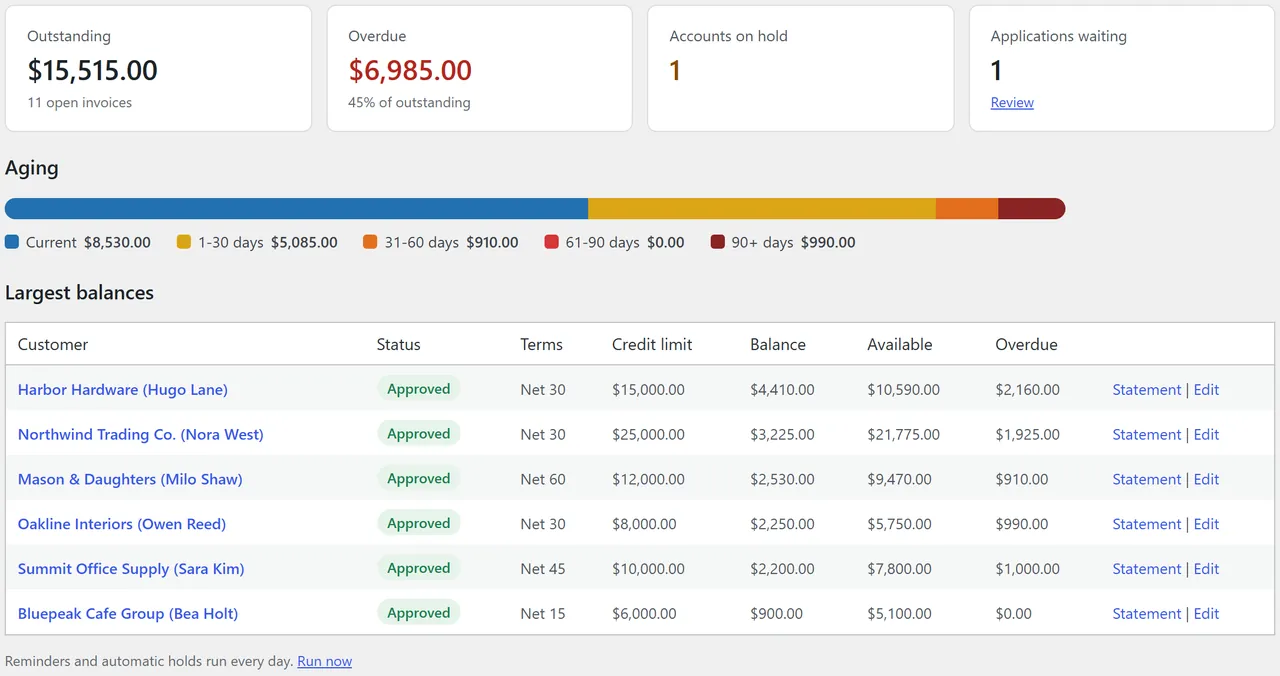
Receivables overview: outstanding, overdue, aging and the largest balances
Key features
Pay on invoice payment method for the block checkout and the classic checkout, with an optional or required PO number.
Credit limit and terms per customer, defaults for whole user roles (for example a "Wholesale" role), "no limit" for trusted accounts.
Credit check at checkout: above the available credit the method is hidden, or the order is accepted and held for credit review (your choice). Paying on invoice can also pause while an invoice is overdue.
Due dates from the order date or from the end of the order month (EOM). The terms, due date and PO number appear on the thank-you page, in My Account and in the order e-mails.
My Account > Credit account: limit, balance, available credit, overdue amount, every invoice with its status and a Pay now button, a printable statement, and the credit application form.
Pay online: open invoices are paid on the normal "pay for order" page with any of your other payment methods; the payment is recorded on the invoice by itself.
Record payments on the order screen: full or part payments with date, method and reference; remove a wrong entry; change the due date or the PO number.
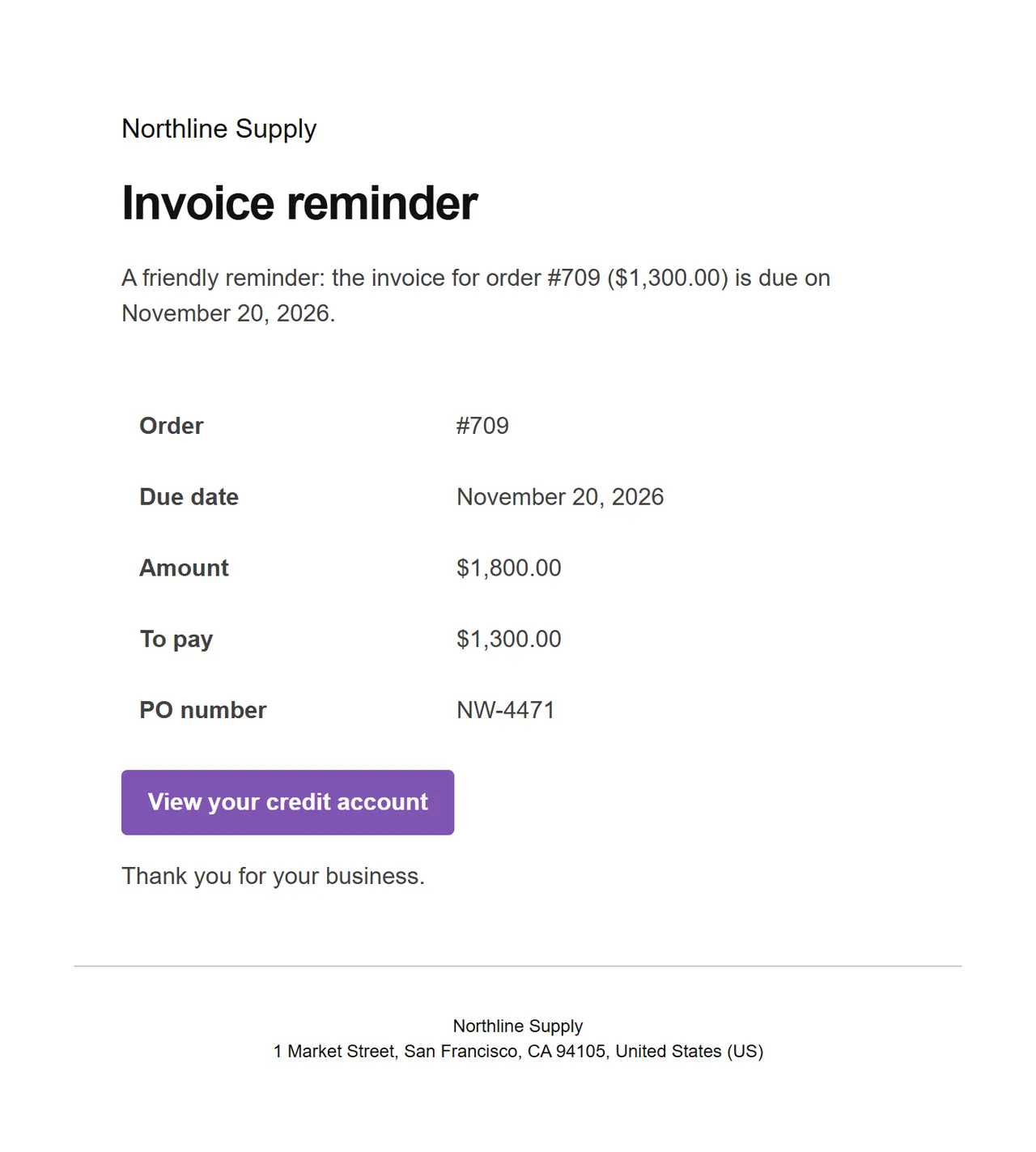
Reminders: a daily job e-mails the customer a few days before the due date, on the due date and every few days while overdue. "Send reminder now" on the order.
Automatic hold: accounts with an invoice more than a set number of days overdue are put on hold and e-mailed; the hold is lifted by itself once paid.
Credit applications with approve (limit and terms) and decline (reason) e-mails.
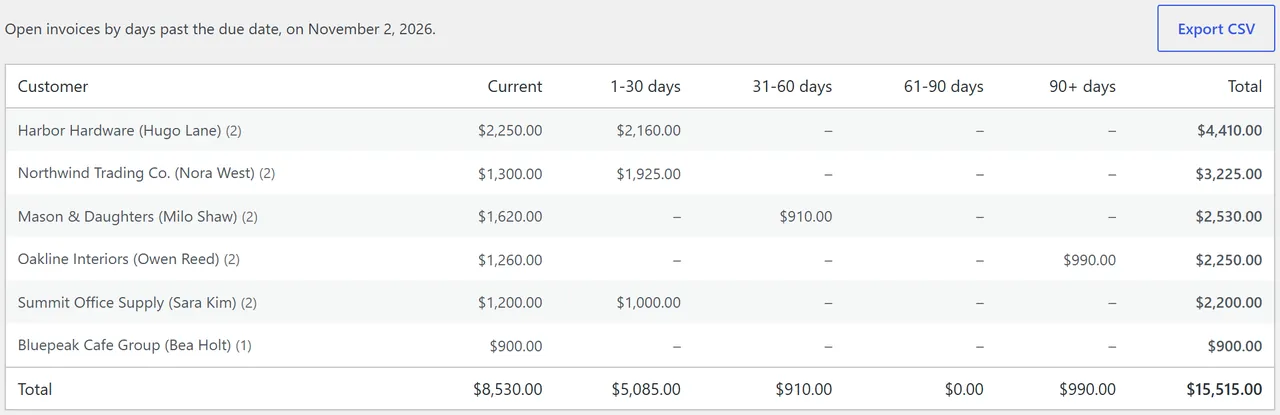
Receivables overview, invoice list, accounts and an aging report (current, 1-30, 31-60, 61-90, 90+ days), with CSV export.
Compatibility
WordPress 6.7+, WooCommerce 10.1+ (tested with WordPress 7.1.3 and WooCommerce 11.2.1), PHP 7.4 - 8.3.
High-Performance Order Storage (HPOS) and the legacy order storage; Cart and Checkout blocks and the classic checkout; block and classic themes.
All five e-mails are WooCommerce e-mails: edit or switch them off under WooCommerce > Settings > Emails.
What it does not do
It does not create PDF invoices. The order is the invoice record; use your invoice plugin or accounting software for the document.
It does not take part payments online. A customer pays the whole open amount online; part payments are recorded by you.
One currency per invoice: the amounts of an invoice are in the order currency, the account totals in the store currency.
Installation
Requirements
WordPress 6.7 or later, WooCommerce 10.1 or later (tested with 11.2.1), PHP 7.4 - 8.3
WP-Cron or a real cron job, for the daily reminders (WooCommerce's Action Scheduler runs the job)
Install
Download kv-net-terms-kv.zip from My licences > Downloads on woocommerce.kaviolabs.com.
In WordPress: Plugins > Add New > Upload Plugin, choose the zip, Install Now, Activate.
Open WooCommerce > Settings > Net terms and enter your licence key at the bottom. The plugin works for 14 days without a key.
Check that Pay on invoice (net terms) is switched on under WooCommerce > Settings > Payments. Its title and description can be changed there.
First steps
Under WooCommerce > Settings > Net terms set the default credit limit and the default payment terms.
Choose who gets an account:
whole user roles under Approved by role (for example your wholesale role), or
single customers under WooCommerce > Net terms > Accounts > Open a credit account, or on the customer's user profile (Credit account section), or
customers apply themselves under My Account > Credit account and you approve them under WooCommerce > Net terms > Applications.
Place a test order as one of these customers and choose "Pay on invoice".
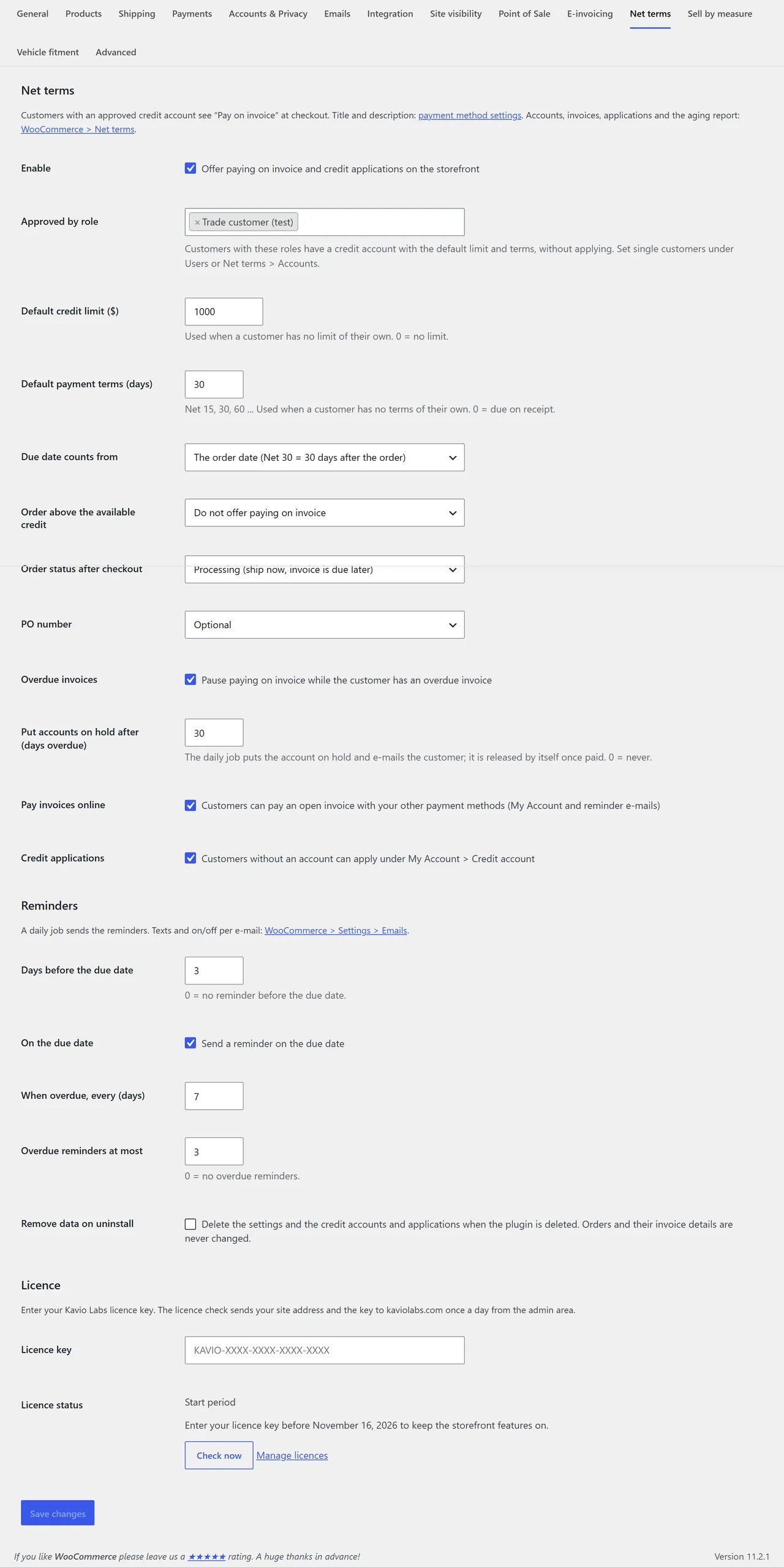
Settings: limits, terms, checkout rules and reminders
Update
Upload the new zip the same way and choose Replace current with uploaded. Settings, accounts and invoices are kept.
Uninstall
Deactivating stops the daily job. Deleting the plugin removes its settings, accounts and applications only when Remove data on uninstall is ticked. Orders and their invoice details (due date, PO number, payments) are never changed or deleted.
Configuration
All settings are under WooCommerce > Settings > Net terms.
Accounts
Setting
What it does
Enable
Offers paying on invoice and the credit application on the storefront. Admin screens always work.
Approved by role
Customers with these roles have an account with the default limit and terms without applying. A status set on the customer's profile wins over the role.
Default credit limit
Used when a customer has no limit of their own. 0 = no limit.
Default payment terms (days)
Net 15, 30, 60 ... 0 = due on receipt.
Due date counts from
The order date (Net 30 = 30 days after the order) or the end of the order month (Net 30 EOM).
Checkout
Setting
What it does
Order above the available credit
Do not offer paying on invoice (a note tells the customer why), or Accept it and hold the order for credit review (the order is placed "On hold" and marked "Credit review").
Order status after checkout
Processing (ship now, the invoice is due later) or On hold (check every order first).
PO number
Do not ask, optional or required.
Overdue invoices
Pause paying on invoice while the customer has an overdue invoice.
Put accounts on hold after (days overdue)
The daily job puts the account on hold and e-mails the customer; it is released by itself once the overdue invoices are paid. 0 = never.
Pay invoices online
Customers can pay an open invoice with your other payment methods from My Account and from the reminder e-mail.
Credit applications
Customers without an account see the application form under My Account > Credit account.
Reminders
Setting
Default
Days before the due date
3 (0 = none)
On the due date
yes
When overdue, every (days)
7
Overdue reminders at most
3
Each reminder is sent once per invoice. If the daily job could not run for a few days it sends only the reminder that fits today, not every missed one. Changing the due date on the order starts the reminders again.
Single customers
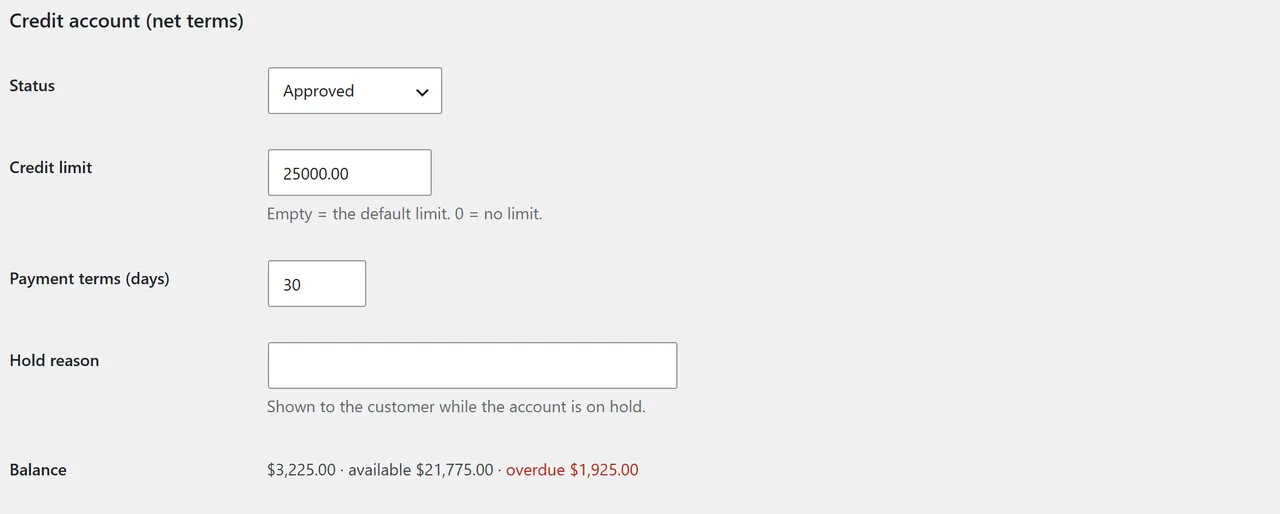
On the customer's user profile (Users > Edit, section Credit account (net terms)):
Status: Approved by role (default), No credit account, Approved, On hold, Declined
Credit limit: empty = the default, 0 = no limit
Payment terms (days): empty = the default
Hold reason: shown to the customer while the account is on hold
The section also shows the balance, the available credit and the overdue amount.
Credit account on the user profile
E-mails
Under WooCommerce > Settings > Emails:
E-mail
Sent to
Net terms: invoice reminder
customer
Net terms: account on hold
customer
Net terms: application approved
customer
Net terms: application declined
customer
Net terms: new credit application
store (recipients editable)
The order e-mails of WooCommerce (processing, on hold, completed) show the payment terms, the due date and the PO number automatically.
Licence
Own-site edition: enter the licence key at the bottom of the settings. Without an active licence, new orders on invoice and new applications are not offered. Existing invoices, payments, reminders and every admin screen keep working.
Usage
At checkout
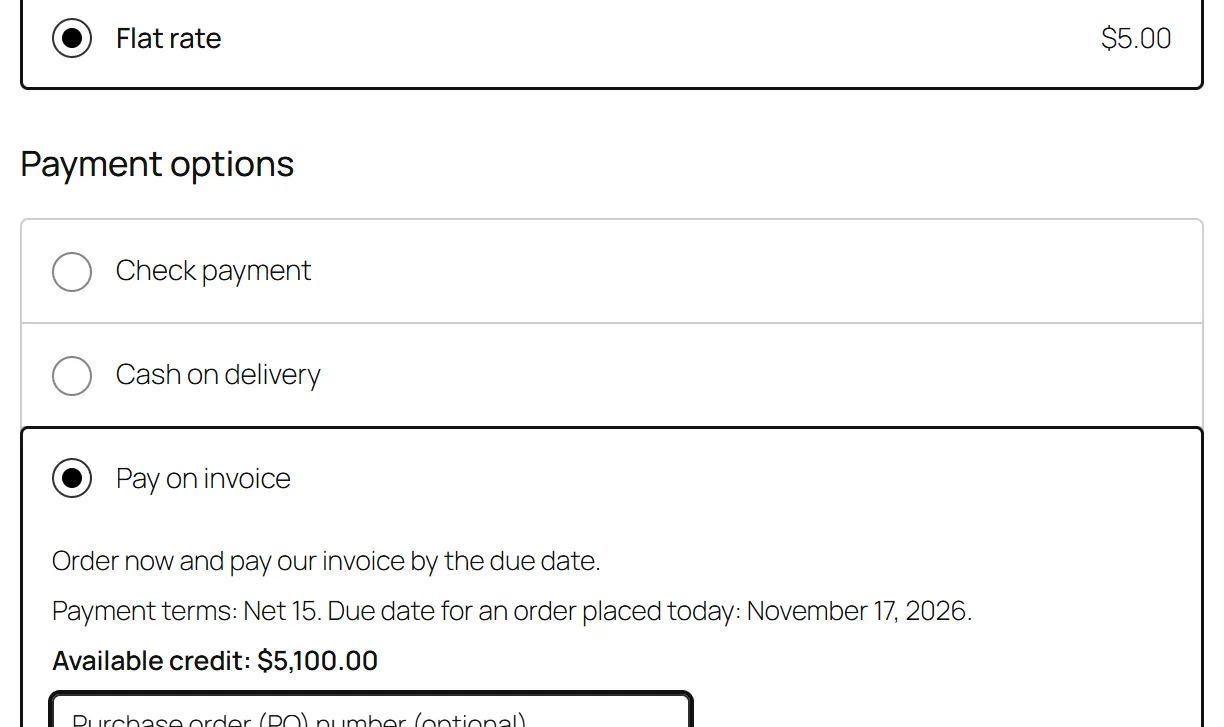
A signed-in customer with an approved account sees Pay on invoice next to your other payment methods, in the block checkout and in the classic checkout. Under it: the payment terms, the due date of an order placed today, the available credit and the PO number field.
Pay on invoice in the block checkout
When the order does not fit (above the available credit, an overdue invoice, account on hold), the method is not offered and a short note says why: above the payment methods in the classic checkout, in the order summary of the block checkout. The server checks the account and the credit again when the order is placed, so a forged request cannot place an order on invoice.
The order gets the status you chose (Processing or On hold) and stock is reduced as usual. The thank-you page, My Account and the order e-mails show "Payment terms: Net 30, due ..." and the PO number.
My Account > Credit account
The customer sees the credit limit, balance, available credit and overdue amount, the payment terms, and the invoices (Open, Paid, All) with the due date, the amount still to pay and the status. Pay now opens the normal "pay for order" page with your other payment methods. Print statement opens a printable statement.
My Account > Credit account
Customers without an account see the application form.
Credit application form
WooCommerce > Net terms
Receivables: outstanding and overdue totals, accounts on hold, waiting applications, the aging bar and the largest balances. "Run now" runs the daily reminders and holds at once.
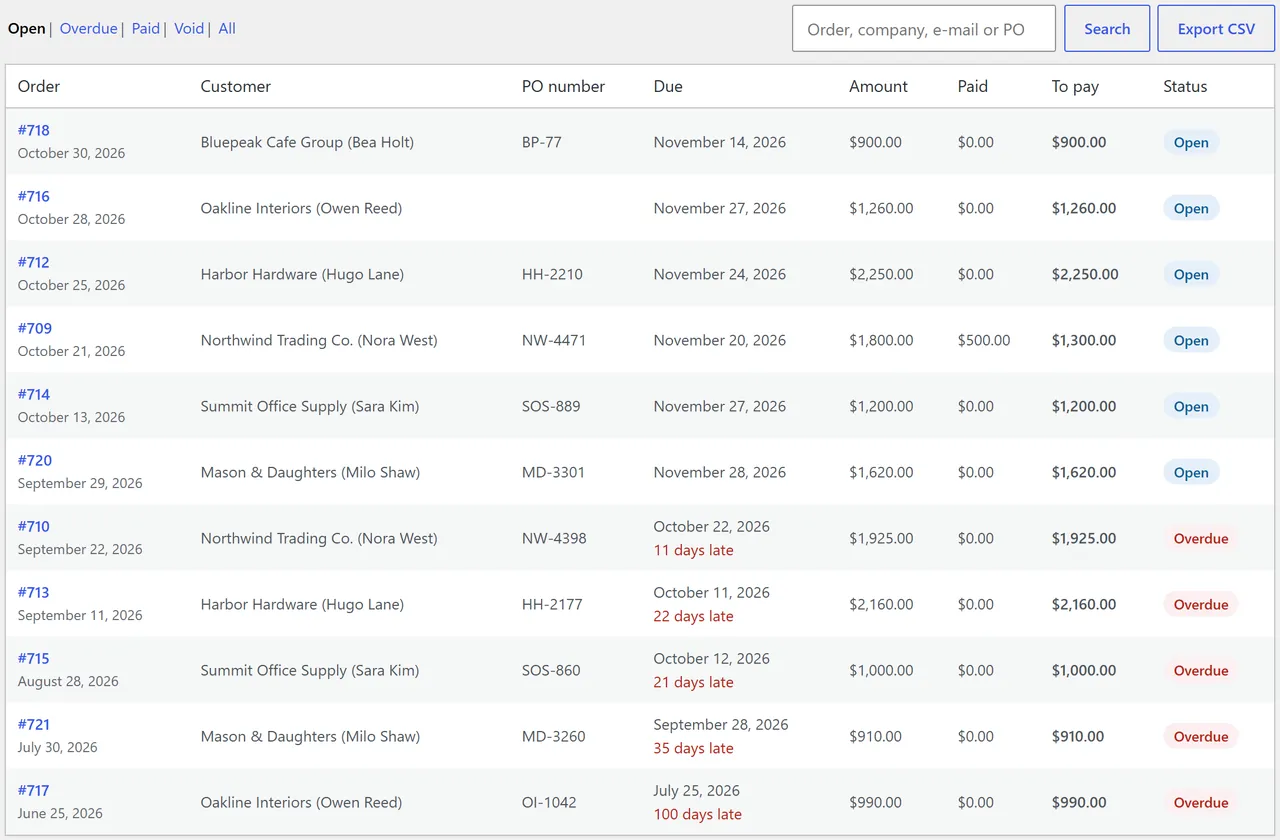
Invoices: Open, Overdue, Paid, Void and All, search by order number, company, e-mail or PO number, CSV export.
Accounts: every customer with an account or an invoice, with terms, limit, balance, available credit and overdue amount; Statement and Edit per customer; Open a credit account for any customer.
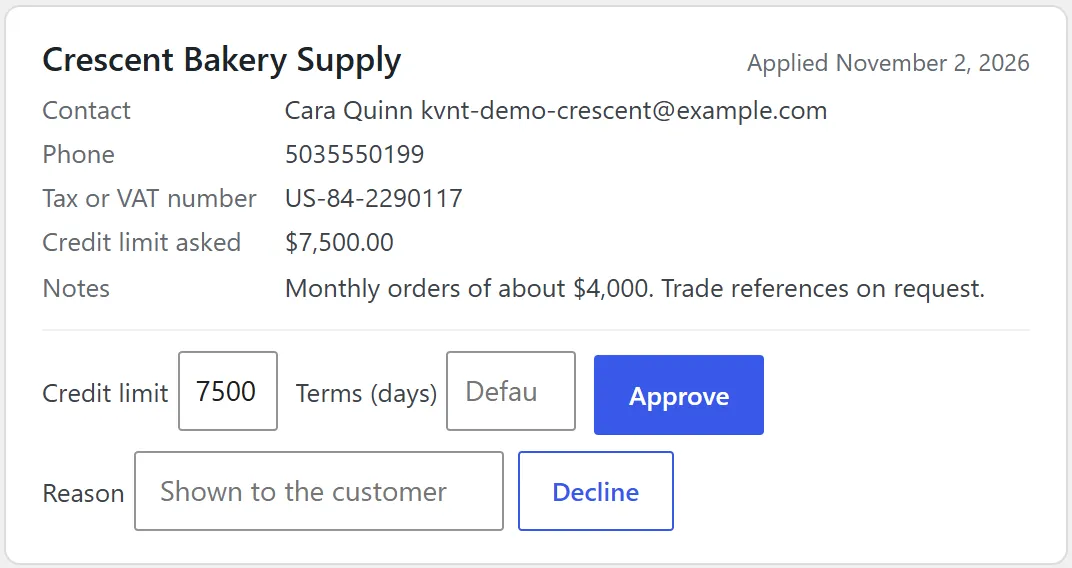
Applications: approve with a limit and terms (empty = the defaults) or decline with a reason; the customer is e-mailed.
Aging report: open amounts per customer in Current, 1-30, 31-60, 61-90 and 90+ days, with totals and CSV export.
InvoicesApplicationsAging report
On the order
The Net terms invoice box shows the state, terms, due date, PO number, amount, paid and to pay.
Record payment: amount (the open amount is filled in; more than the open amount is capped), date, method and reference. When the invoice is paid in full it closes and the order gets a note.
× next to a payment removes it (for example a wrong amount).
Send reminder now e-mails the customer at once.
Change the due date or the PO number and click Update.
Net terms invoice box on the order
Orders you create in the admin with "Pay on invoice (net terms)" as payment method become invoices with the customer's terms when you save them.
Cancelled, failed and fully refunded orders become void and no longer count in the balance. A part refund lowers the amount to pay.
Reminder e-mail
Invoice reminder e-mail
FAQ
Who sees "Pay on invoice"?
Only signed-in customers with an approved account whose order fits the available credit, or, if you allow it, orders held for credit review. Guests never see it.
How is the available credit calculated?
Credit limit minus the open amount of all open invoices of the customer (orders paid on invoice that are not paid, cancelled or refunded). Orders held for credit review count too.
What does "no limit" mean?
A credit limit of 0 means the customer can order any amount on invoice. The other checks (account on hold, overdue invoices) still apply.
Can a customer pay part of an invoice online?
No. Online the whole open amount is paid. Part payments (for example a bank transfer of half the amount) are recorded by you on the order. After a part payment the "Pay now" button is not shown any more.
Which payment methods can pay an invoice online?
Every payment method of your store that works on the "pay for order" page, for example card or PayPal gateways. Cash on delivery and "Pay on invoice" itself are not useful there. The payment is recorded when the gateway reports it as complete.
Does the plugin create PDF invoices or credit notes?
No. Use your invoice plugin (for example our EU E-Invoicing for WooCommerce) or your accounting software. The order holds the terms, due date, PO number and payments.
What happens when a customer's role changes?
Accounts by role follow the role. A status set on the customer's profile (Approved, On hold, Declined) stays until you change it.
Do reminders go out when WP-Cron is off?
The daily job runs through WooCommerce's Action Scheduler, which needs WP-Cron or a server cron that calls wp-cron.php. You can also run it by hand: WooCommerce > Net terms > Receivables > Run now.
Is it compatible with HPOS and the block checkout?
Yes, both are declared and tested, and so are the legacy order storage and the classic checkout.
What happens without an active licence?
New orders on invoice and applications are not offered. Everything you already have keeps working: invoices, payments, reminders, statements and the admin screens.
What is removed when I delete the plugin?
The licence state and the daily job always; the settings, credit accounts and applications only with Remove data on uninstall. Orders and their invoice details are never touched.
The department store block theme for WooCommerce: colour-coded departments, a department list beside the hero slider with two side promos, a big search with a department picker, tabbed product grids, a 2 + 1 + 2 offer grid, deals of the day with real countdowns, a department showcase, a promotions band and a three-column product page with a sticky buy box. Four styles (Meridian, Harbor, Citrus, Night) as Site Editor style variations, every colour editable. Cart and Checkout blocks styled, HPOS neutral.
Stop AI crawlers, scrapers, card testers, vulnerability scanners and unwanted countries before WordPress builds a page. Googlebot and Bingbot are verified by DNS and always allowed; 50+ bots get one switch each; country rules use free GeoIP databases and can close only the checkout (block and classic checkout, wc-ajax and Store API); card testing protection on order submissions; the add to cart flood fix for requests without a WooCommerce session; IP and network lists, rate limits for search, filters, forms and login, honeypots; a one-second challenge instead of a captcha; learning mode, dashboard, log, IP tester and Cloudflare export. HPOS and blocks compatible.
The campaign block theme for WooCommerce that makes a store feel like a sale is always on: a flash bar with the sale that ends first, a bento hero with a live deal tile, a dark flash deals zone with flip-tile countdowns on real sale end dates, round discount stickers, a category pill bar, stories with a player, a Discover feed with promo cells inside the grid, a product page campaign strip and a sticky phone buy bar. Sixteen colour styles as Site Editor style variations, two of them dark. Cart and Checkout blocks styled, HPOS neutral.