by Kavio Labs · for WooCommerce 10.1+ on WordPress 6.7+
Thousands of unique coupon codes behind one WooCommerce coupon, kept in their own table instead of one coupon post per code: single use or your own limit, an end date and an optional e-mail lock per code, links that put the code into the cart, CSV export and import, disable and extend in bulk, a report of orders, revenue and discount per batch and per code, and a unique next-order code in the Completed order e-mail. Classic and block cart and checkout, HPOS.
On saleVersion 1.0.0Compatible with WooCommerce 10.1 – 11.2, WordPress 6.7+ No core file edits
Built forWooCommerce
Thousands of unique codes behind one coupon1 of 9
Thousands of unique coupon codes behind one WooCommerce coupon, kept in their own table instead of one coupon post per code: single use or your own limit, an end date and an optional e-mail lock per code, links that put the code into the cart, CSV export and import, disable and extend in bulk, a report of orders, revenue and discount per batch and per code, and a unique next-order code in the Completed order e-mail. Classic and block cart and checkout, HPOS.
WooCommerce 10.1 - 11.2, WordPress 6.7+
Overview
One coupon code for everybody leaks: it gets posted on a coupon site, and you never learn which mailing, flyer or partner brought the order. Coupon Codes Pro gives every customer their own code without filling your store with thousands of coupons.
A batch is a set of unique codes that work like one of your WooCommerce coupons: same discount, products, minimum spend and other rules. Every code in the batch has its own uses, end date, optional e-mail lock and report. The codes live in their own database table, so the Coupons screen and the posts table do not grow.
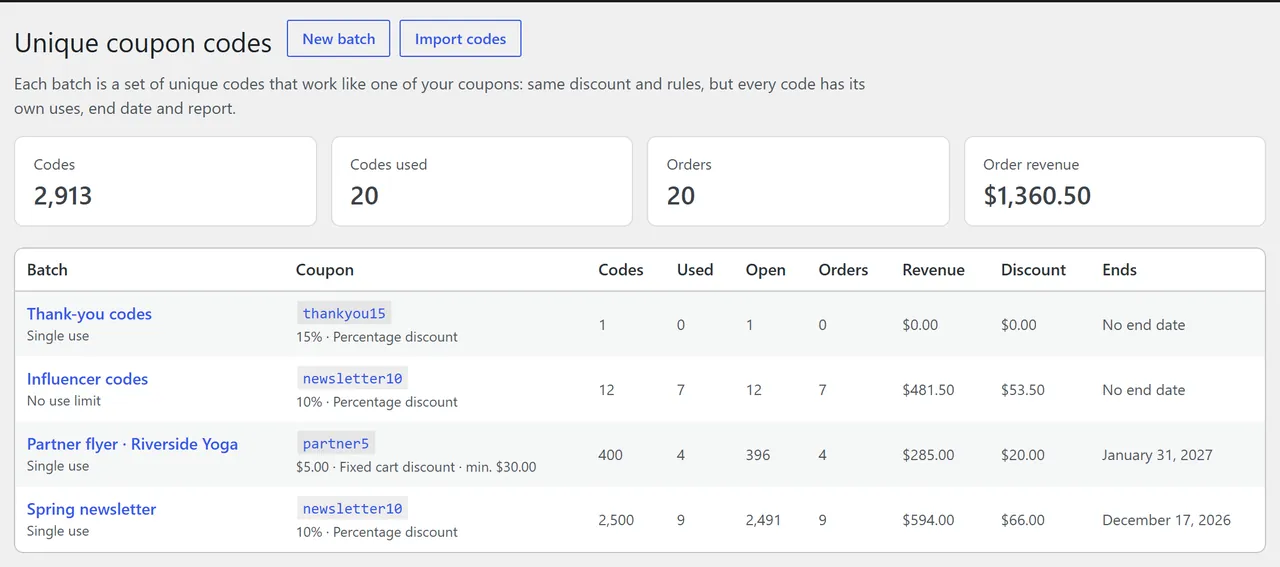
All batches with codes, uses, orders, revenue and discount
Key features
Up to 50,000 unique codes per step behind one coupon, with your prefix, length and character set (no look-alike characters by default). Add more codes to a batch later.
Per-code limits: single use, your own number of uses or no limit; an end date per code; an optional e-mail lock so only one customer can use a code.
Uses follow the order, the way WooCommerce counts coupon usage: a cancelled or failed order gives the use back. When two shoppers race for the last use, the late order gets an order note.
Coupon links: ?coupon=CODE on any page saves the code for the cart and applies it as soon as the cart meets the coupon rules. Works for your normal coupons too.
Report: orders, revenue and discount per batch and per code, the latest orders with their code.
Bulk changes: switch unused or all codes off and on, give them a new end date, search by code or e-mail.
CSV export with the link of every code, and CSV import of codes you already have (with uses, end date and e-mail per line).
Next-order codes: a unique code in the Completed order e-mail and on the order page in My Account, locked to the buyer and valid for the days you choose.
Only unique codes: switch off the coupon's own code so it cannot be shared.
Compatibility
WordPress 6.7+, WooCommerce 10.1+ (tested with WordPress 7.1.3 and WooCommerce 11.2.1), PHP 7.4 - 8.3.
Classic cart and checkout, Cart and Checkout blocks (Store API), orders created in the admin.
High-Performance Order Storage (HPOS) and the legacy order storage; block and classic themes.
The codes work through the documented WooCommerce coupon filters; no core files or templates are changed.
What it does not do
It does not create new discount types: the discount and its rules always come from the WooCommerce coupon of the batch.
It does not send mailings. Export the codes with their links as CSV and use them in your newsletter tool, print shop or partner list.
Codes are not coupon posts, so other plugins that list coupon posts see the batch coupon, not each code.
Installation
Requirements
WordPress 6.7 or later, WooCommerce 10.1 or later (tested with 11.2.1), PHP 7.4 - 8.3
The plugin adds three small database tables on activation
Install
Download kv-coupon-codes-pro-kv.zip from My licences > Downloads on woocommerce.kaviolabs.com.
In WordPress: Plugins > Add New > Upload Plugin, choose the zip, Install Now, Activate.
Open WooCommerce > Settings > Coupon Codes Pro and enter your licence key at the bottom. The plugin works for 14 days without a key.
First steps
Create a coupon under Marketing > Coupons (or use one you have), for example 10 % off with a minimum spend. Its discount and rules are what every code gives.
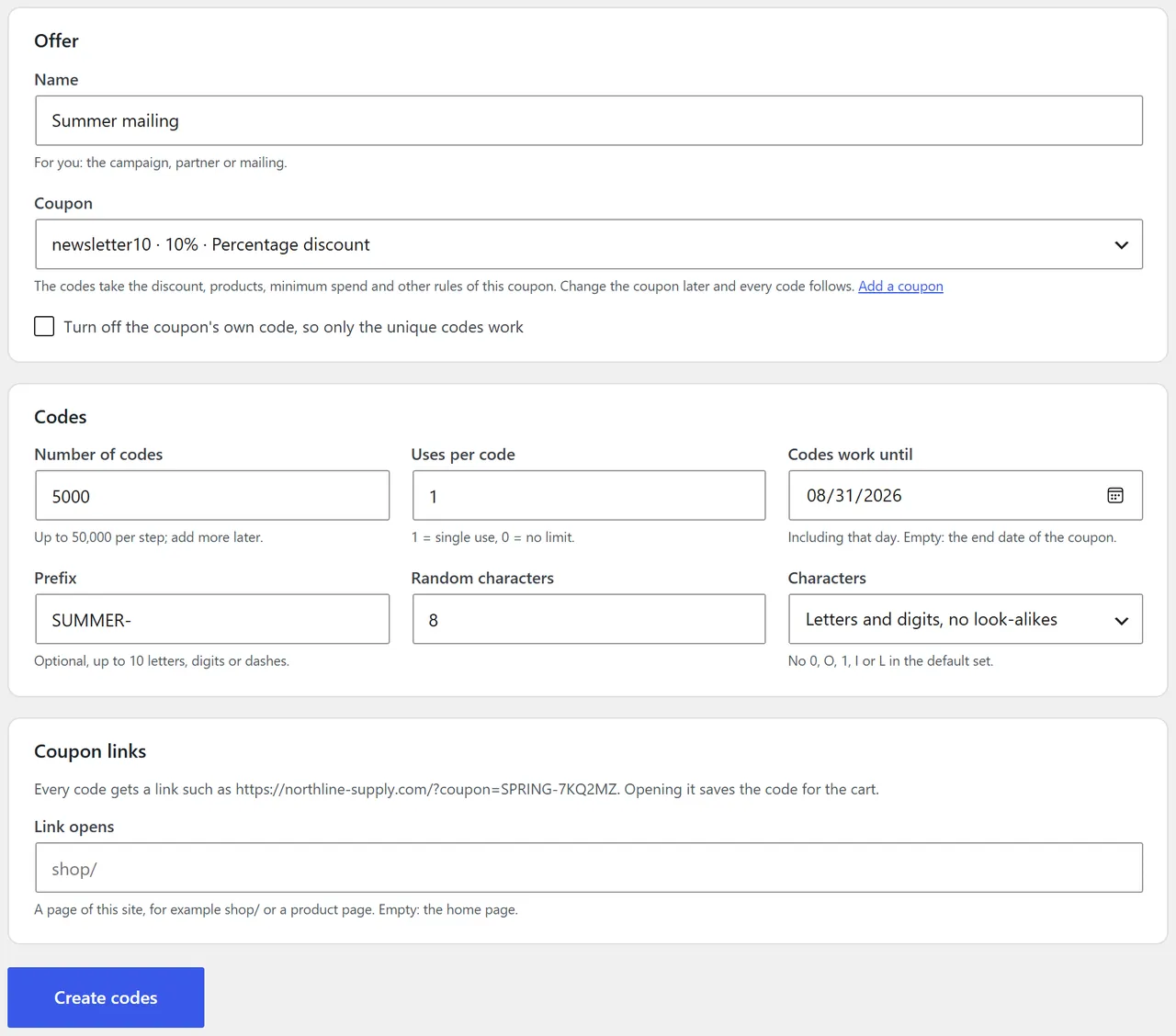
Open Marketing > Unique codes > New batch, give the batch a name (the mailing or partner), choose the coupon and the number of codes, and click Create codes.
Click Export CSV on the batch page and use the codes or their links in your mailing.
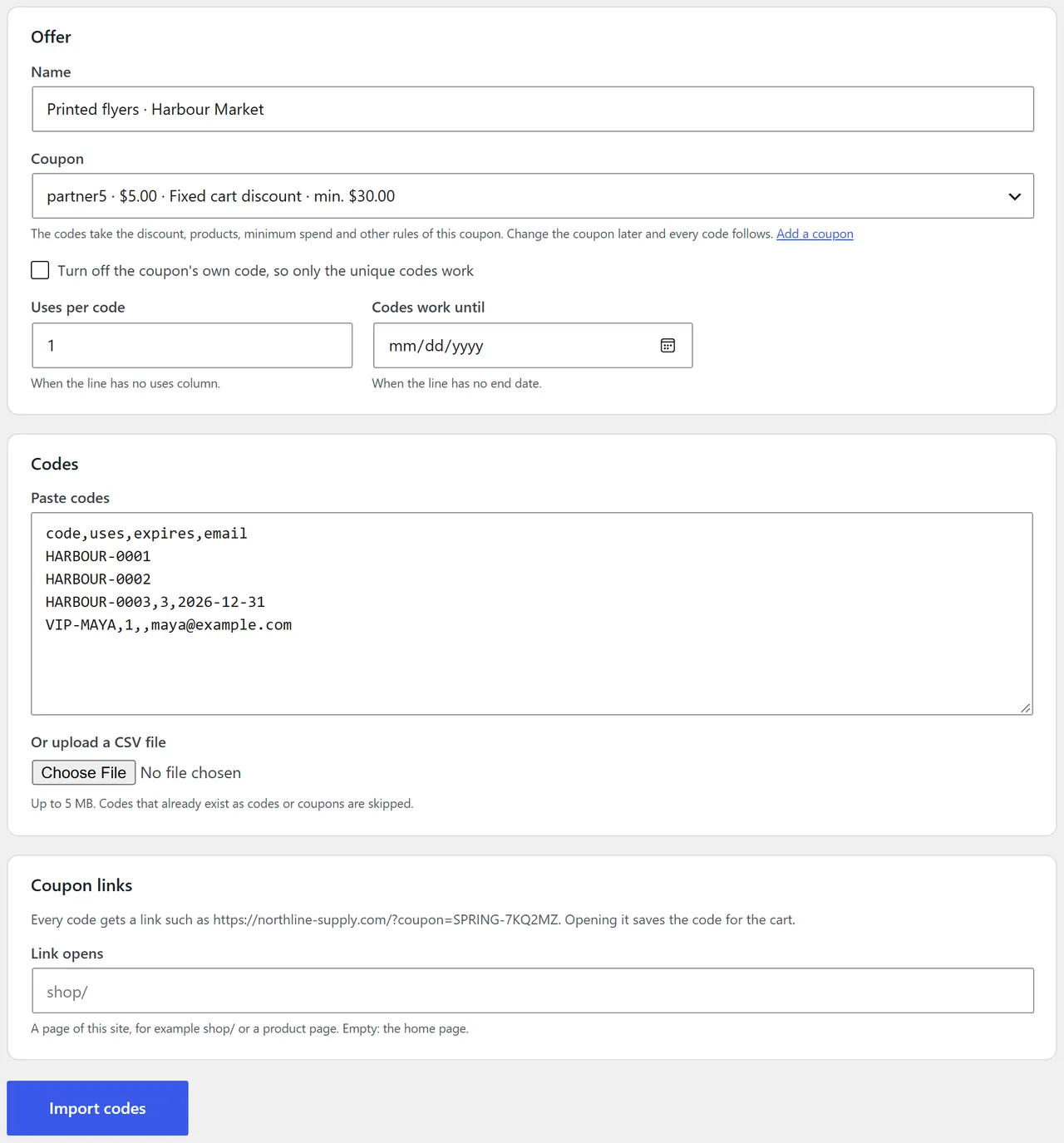
New batch: offer, codes and coupon links
You can also start from the coupon itself: the Unique codes box on the coupon screen lists its batches and has a Make unique codes button.
Update
Upload the new zip the same way and choose Replace current with uploaded. Batches, codes, reports and settings are kept; table changes are applied by themselves.
Uninstall
Deactivating keeps all data; the codes stop working while the plugin is inactive. Deleting the plugin removes the batches, codes, their reports and the settings only when Remove data on uninstall is ticked. Orders and coupons are never changed or deleted.
Configuration
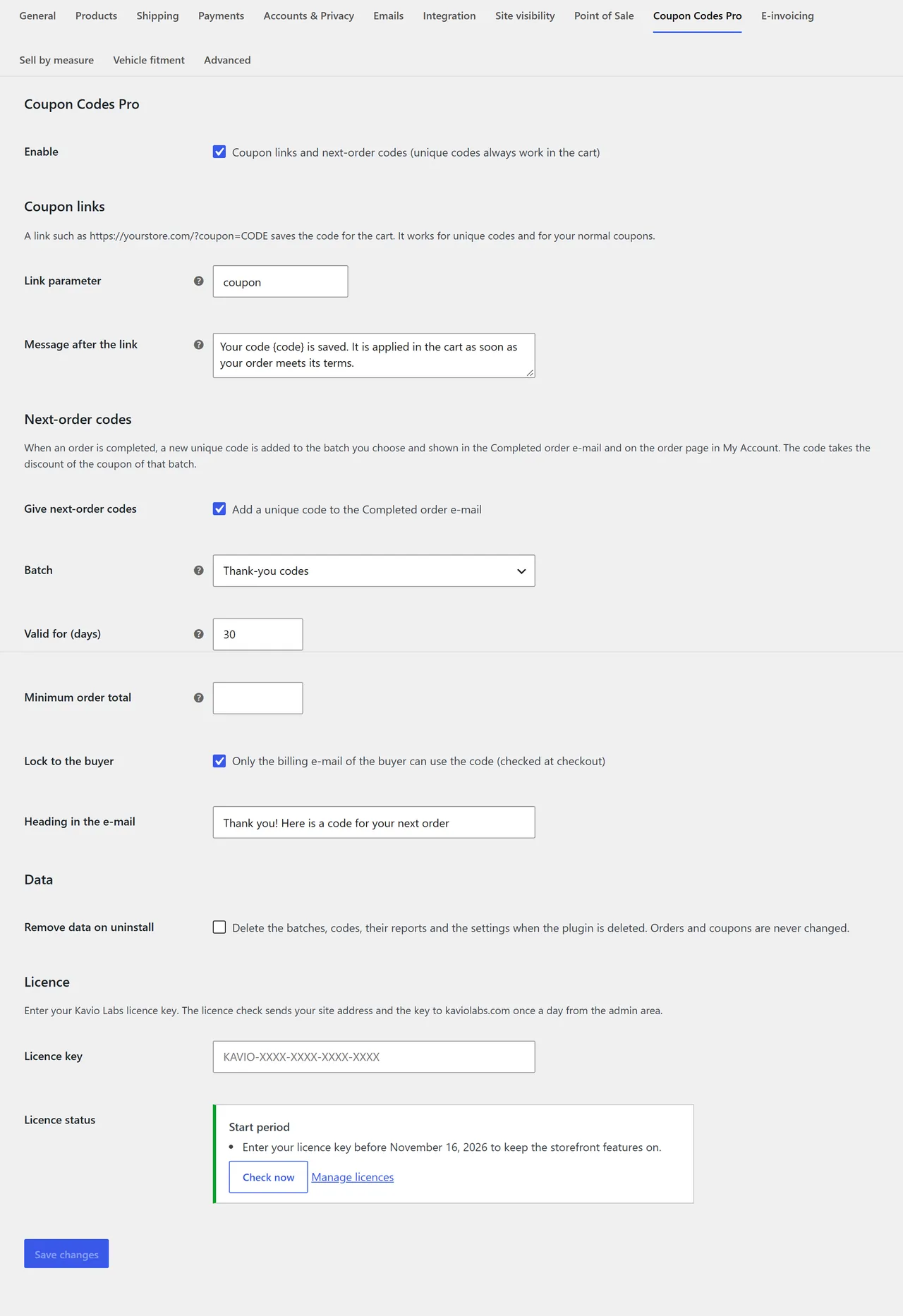
Settings are under WooCommerce > Settings > Coupon Codes Pro. Batches have their own settings on the batch page.
Settings
General
Enable: coupon links and next-order codes. Unique codes always work in the cart, also when this is off.
Coupon links
Link parameter: the name in the address, coupon by default (https://yourstore.com/?coupon=CODE). Change it if another plugin uses the same name.
Message after the link: the text shown when a code is saved for an empty cart. {code} is replaced by the code.
Links work on any page of the store. The parameter is removed from the address after the code is saved, so a shared address does not carry the code on.
Next-order codes
Give next-order codes: add a unique code to the Completed order e-mail and to the order page in My Account.
Batch: the batch the new codes go into. Its coupon gives the discount. Create a batch with 0 codes for this (for example "Thank-you codes" on a 15 % coupon).
Valid for (days): the end date of each new code, counted from the day the order is completed.
Minimum order total: only orders from this total get a code.
Lock to the buyer: only the billing e-mail of the buyer can use the code (checked at checkout).
Heading in the e-mail: the title above the code.
One order gets one code, also when its status is set to Completed again.
Batch settings
On a batch page, Batch settings changes the name and the page the coupon links open. Delete batch removes the batch and its codes; orders keep their coupon lines.
Codes
Uses per code: 1 = single use, 0 = no limit.
Codes work until: including that day. Empty: the end date of the coupon.
Prefix: optional, up to 10 letters, digits or dashes, for example SPRING-.
Random characters: 4 to 16.
Characters: letters and digits without look-alikes (no 0, O, 1, I or L), letters only or digits only.
Turn off the coupon's own code: only the unique codes work (also on the coupon screen).
Codes are unique over all batches and over your normal coupons. Like WooCommerce coupons, codes are not case-sensitive.
Licence
Enter your Kavio Labs licence key at the bottom of the settings page. The licence check sends the site address and the key to kaviolabs.com once a day from the admin area. Without a valid key (after the 14-day start period) coupon links and next-order codes pause; unique codes keep working in the cart and all admin screens stay available.
Usage
Batches (Marketing > Unique codes)
The first page lists every batch with its coupon, number of codes, used and open codes, orders, revenue, discount and end date, and totals over all batches.
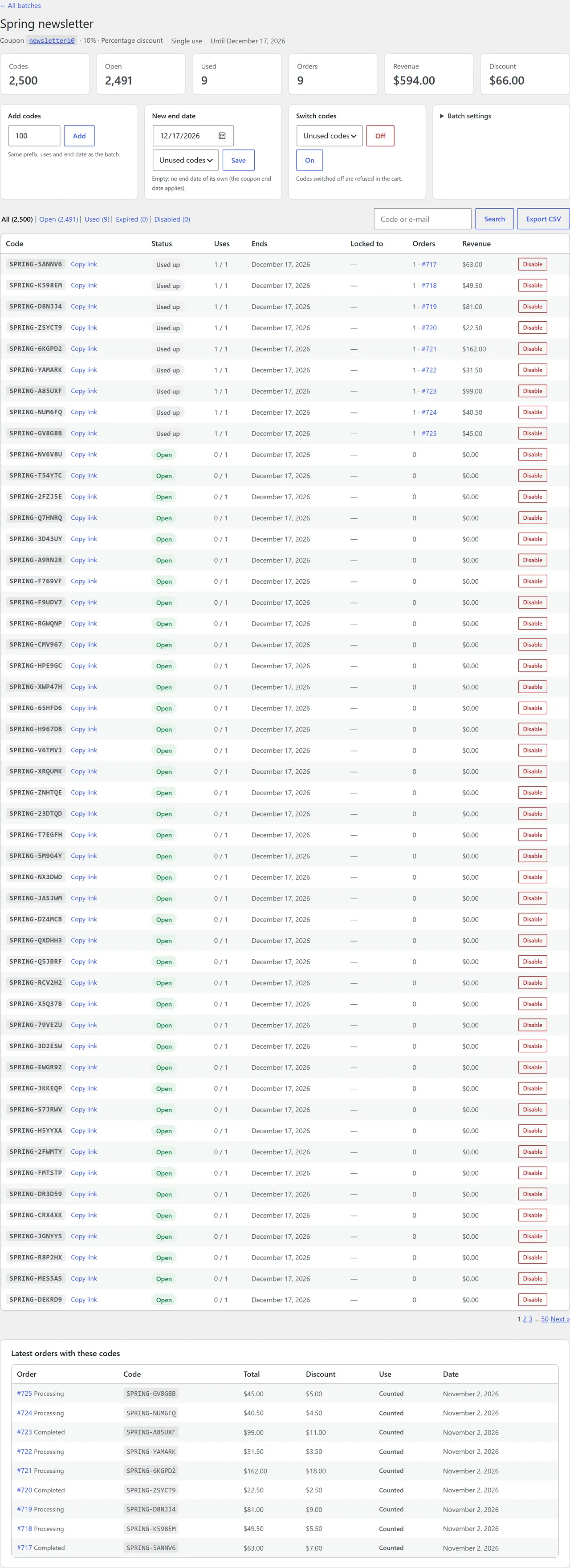
A batch: numbers, tools, codes and latest orders
A batch page has:
Numbers: codes, open, used, orders, revenue and discount of this batch.
Add codes: more codes with the same prefix, uses and end date.
New end date: for unused codes or all codes. Empty removes the code's own end date (the coupon end date applies).
Switch codes: off or on, for unused codes or all codes. Codes switched off are refused in the cart.
Code list: filter All / Open / Used / Expired / Disabled, search by code or e-mail, Copy link, disable or enable one code, the orders and revenue of each code.
Export CSV: code, link, status, uses, uses max, end date, e-mail, orders, revenue, discount and last order.
Latest orders with these codes, with the state of each use (Counted, Over the limit, Given back).
Import codes
Marketing > Unique codes > Import codes: paste codes or upload a CSV file (up to 5 MB). One code per line; optional columns: uses, end date (YYYY-MM-DD), e-mail. A header line is skipped. Codes that already exist as codes or coupons are skipped and counted.
Import codes
On the coupon screen
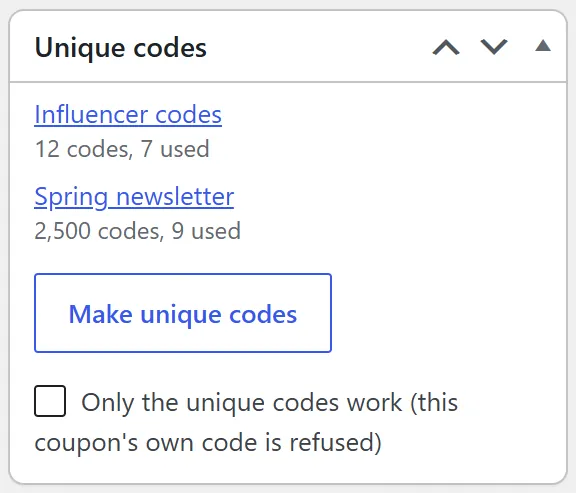
The Unique codes box lists the batches of the coupon and has Make unique codes. Tick Only the unique codes work to refuse the coupon's own code.
Unique codes box on the coupon screen
In the cart and at checkout
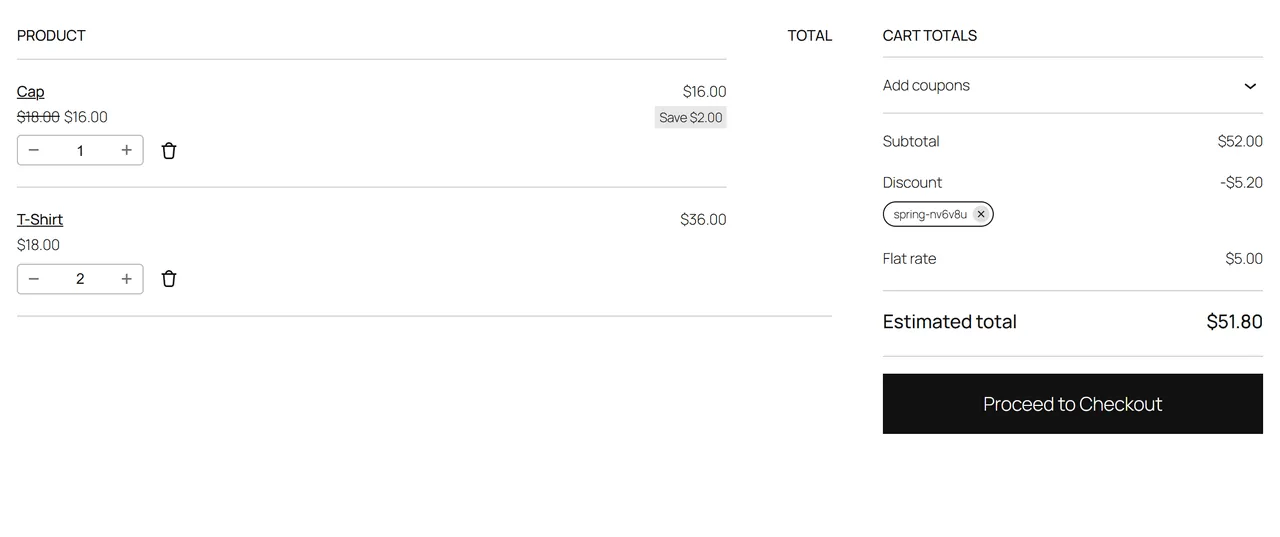
Customers type a code in the coupon field of the classic or block cart and checkout, or open a coupon link. The code shows as a normal coupon line. A used-up, expired, disabled or locked code is refused with a clear message.
Block cart with a unique code
Uses and orders
A use is counted when the order is placed, like WooCommerce coupon usage.
Cancelled, failed, trashed or deleted orders give the use back; restoring the order counts it again.
If two orders take the last use at the same moment, the later order is marked Over the limit and gets an order note so you can decide.
Next-order codes
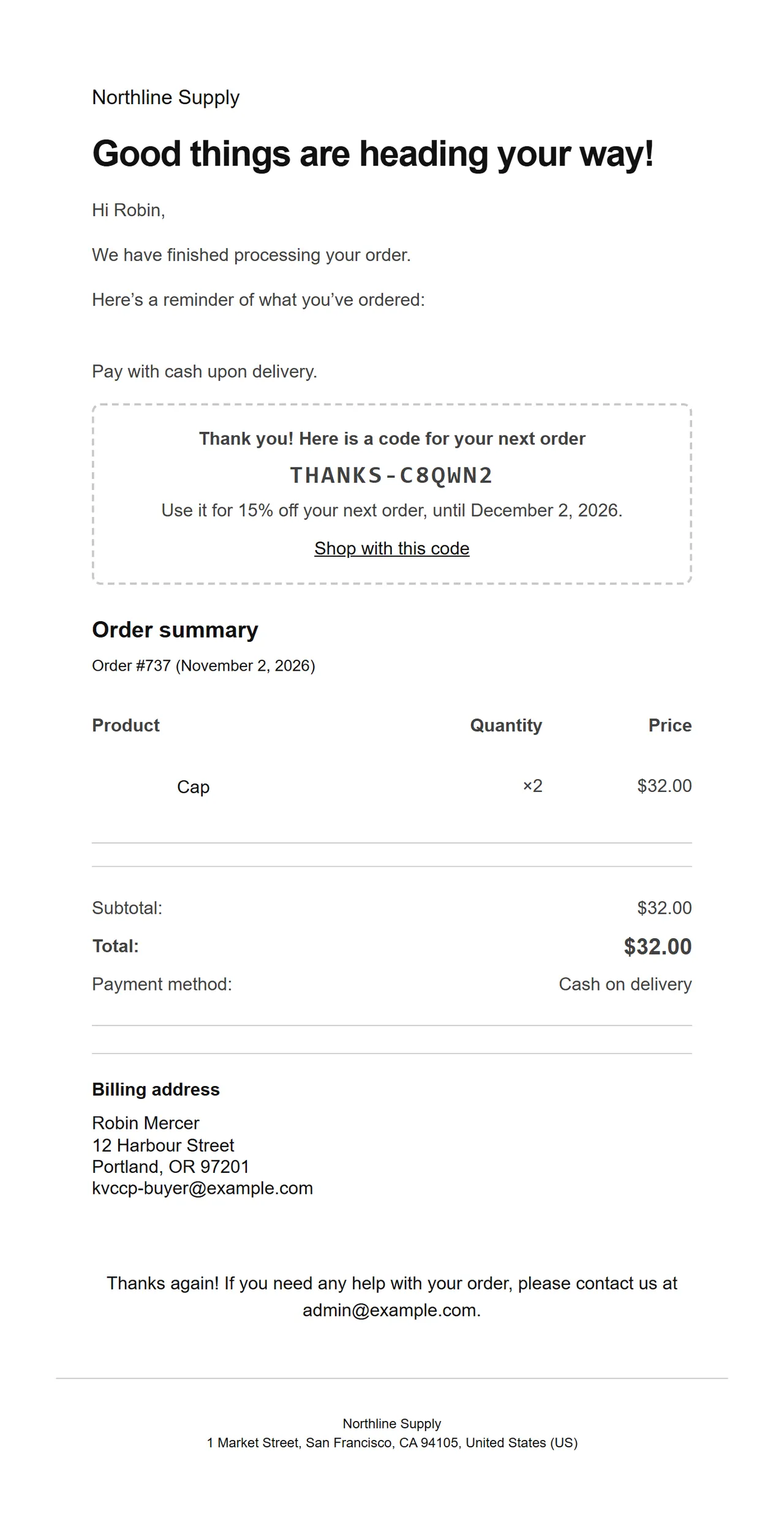
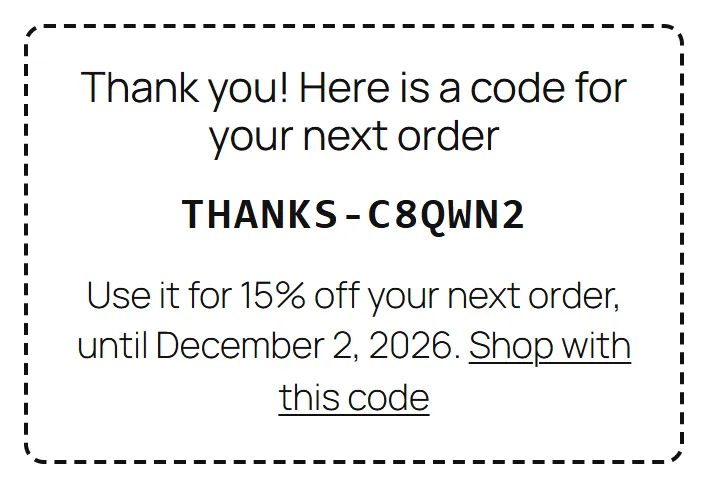
When an order is completed, the buyer gets a new code in the Completed order e-mail and on the order page in My Account.
The code in the Completed order e-mailThe code on the order page in My Account
Privacy
Codes can be locked to an e-mail address. The plugin adds a suggested text to Settings > Privacy, and the WordPress tools Export Personal Data and Erase Personal Data include the codes of an e-mail address (erasing removes the address and switches the code off).
FAQ
Do thousands of codes slow my store down?
No. Each code is one row in an indexed table and is looked up by code, like a coupon. Creating 50,000 codes takes a few seconds. The Coupons screen and the posts table do not grow.
What do customers see?
A normal coupon: they type the code or open a link, and the cart shows the code and the discount. Order e-mails, the order screen and reports show the code that was used.
Which discount do the codes give?
The discount and the rules of the batch coupon: type and amount, products and categories, minimum and maximum spend, individual use, sale items, free shipping. Change the coupon and every code follows. Per code you set the uses, the end date and the e-mail lock.
Can a code be used twice?
Only if you allow more uses. A single-use code is refused once its order is placed. If two shoppers place orders with the same last use at the same time, the second order is marked "Over the limit" with an order note.
What happens when an order is cancelled or refunded?
Cancelled, failed, trashed and deleted orders give the use back. A refund does not change the use (the order still used the code), the same as WooCommerce coupon usage.
Do links work when the cart is empty?
Yes. The code waits in the shopper's session and is applied when the cart meets the coupon rules.
Can I use codes I already have?
Yes. Import them as CSV or paste them, with uses, end date and e-mail per line.
Does it work with the block checkout?
Yes: classic and block cart and checkout, the Store API and orders created in the admin, with HPOS on or off.
Can I export the codes?
Yes, per batch as CSV with the link of each code and its numbers.
Where are the codes stored?
In three tables of your database (kv_ccp_batch, kv_ccp_code and kv_ccp_use, with your table prefix). Nothing is sent to an outside service.
The department store block theme for WooCommerce: colour-coded departments, a department list beside the hero slider with two side promos, a big search with a department picker, tabbed product grids, a 2 + 1 + 2 offer grid, deals of the day with real countdowns, a department showcase, a promotions band and a three-column product page with a sticky buy box. Four styles (Meridian, Harbor, Citrus, Night) as Site Editor style variations, every colour editable. Cart and Checkout blocks styled, HPOS neutral.
Stop AI crawlers, scrapers, card testers, vulnerability scanners and unwanted countries before WordPress builds a page. Googlebot and Bingbot are verified by DNS and always allowed; 50+ bots get one switch each; country rules use free GeoIP databases and can close only the checkout (block and classic checkout, wc-ajax and Store API); card testing protection on order submissions; the add to cart flood fix for requests without a WooCommerce session; IP and network lists, rate limits for search, filters, forms and login, honeypots; a one-second challenge instead of a captcha; learning mode, dashboard, log, IP tester and Cloudflare export. HPOS and blocks compatible.
The campaign block theme for WooCommerce that makes a store feel like a sale is always on: a flash bar with the sale that ends first, a bento hero with a live deal tile, a dark flash deals zone with flip-tile countdowns on real sale end dates, round discount stickers, a category pill bar, stories with a player, a Discover feed with promo cells inside the grid, a product page campaign strip and a sticky phone buy bar. Sixteen colour styles as Site Editor style variations, two of them dark. Cart and Checkout blocks styled, HPOS neutral.